1. उत्पादन संपलेview
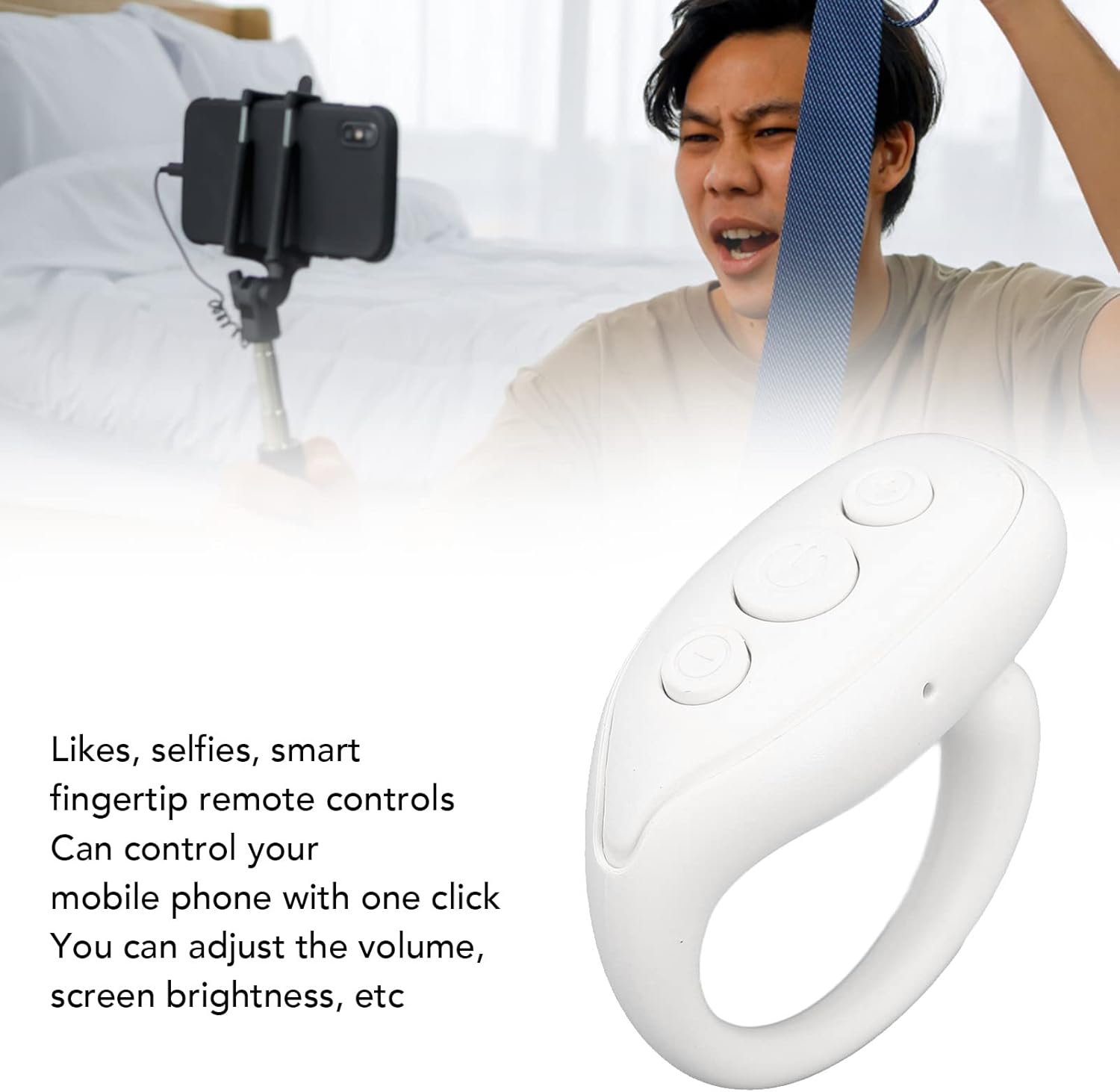
The Sonew BT Remote Control Page Turner is a compact, ring-shaped device designed to enhance your mobile phone experience. It allows for remote control of various functions, including taking photos, navigating videos, and turning pages in e-books, providing convenience and comfort.
मुख्य वैशिष्ट्यांचा समावेश आहे:
- One-Key Control: Simplifies operations for photos, videos, and e-books.
- बहु-कार्यात्मक: Beyond photos, it adjusts video volume, screen brightness, and supports fast forward/rewind.
- अर्गोनॉमिक डिझाइन: Ring-shaped for comfortable wear, promoting relaxed viewing पोझिशन्स.
- विस्तृत सुसंगतता: Supports various mainstream short video, camera, and novel applications.
- पोर्टेबल: Small and lightweight for easy carrying.

प्रतिमा: समोर view of the Sonew BT Remote Control Page Turner, showing the three control buttons.
2. तपशील
| आयटम प्रकार | Mobile Phone BT Remote |
| साहित्य | ABS |
| बीटी आवृत्ती | BT 5.3 |
| स्टँडबाय वेळ | अंदाजे 4 महिने |
| लागू प्रणाली | Video, reading, selfie remote control |
| सपोर्ट | For iOS 15.0, for Android 8.0 and above |
| बॅटरी | Built-in Polymer 30mAh |
| रंग | पांढरा |
3. पॅकेज सामग्री
पॅकेजमध्ये खालील बाबींचा समावेश आहे:
- 1 x Mobile Phone BT Remote
- 1 x सूचना पुस्तिका
- 1 x चार्जिंग केबल

Image: The Sonew BT Remote Control Page Turner shown alongside its USB charging cable.
४. सेटअप आणि पेअरिंग
4.1 डिव्हाइस चार्ज करणे
Before first use, ensure the remote control is fully charged. Connect the provided charging cable to the remote's charging port and a suitable USB power source.
प्रतिमा: क्लोज-अप view of the Sonew BT Remote Control Page Turner, highlighting the USB-C charging port on the side.
4.2 ब्लूटूथ पेअरिंग
- Ensure your mobile phone's Bluetooth is enabled.
- Long press the power button on the remote control to turn it on. The indicator light will flash, indicating it's in pairing mode.
- On your phone, search for available Bluetooth devices.
- Select "BT Remote" or a similar name from the list of devices to connect.
- Once connected, the indicator light on the remote will stop flashing or show a steady light.
5. ऑपरेटिंग सूचना
The remote control features three main buttons for various functions. The central button is the power/pause button, and the other two buttons control navigation and volume.

प्रतिमा: वरपासून खालपर्यंत view of the remote, showing the three distinct buttons for control.
६.१ सामान्य नियंत्रणे
- Long press (Center Button): डिव्हाइस चालू/बंद करा.
- Click (Center Button): Pause/Play for media, or trigger the camera shutter for photos.
- Double click (Center Button): "Like" function in supported apps.
5.2 Navigation and Volume Controls
The two side buttons are primarily used for navigation and volume adjustments, depending on the application.
| बटण क्रिया | Function (Left Button) | Function (Right Button) |
| क्लिक करा | Turn page up / Scroll up | Turn page down / Scroll down |
| डबल क्लिक करा | Turn page left | Turn page right |
| लांब दाबा | आवाज वाढवा | आवाज कमी करा |
टीप: Specific functions may vary slightly depending on the application being used (e.g., video player, e-reader, camera app).

Image: An individual using the remote control to capture a photo with a smartphone mounted on a selfie stick, demonstrating its use for remote photography.

Image: A person comfortably using the ring-shaped remote to interact with their phone, illustrating its benefit for hands-free operation and comfort.
6. देखभाल
- उपकरण कोरडे ठेवा. ओलावा किंवा द्रवपदार्थांच्या संपर्कात येणे टाळा.
- मऊ, कोरड्या कापडाने उपकरण स्वच्छ करा. अपघर्षक क्लीनर किंवा सॉल्व्हेंट्स वापरू नका.
- वापरात नसताना यंत्र थंड, कोरड्या जागी साठवा.
- डिव्हाइसवर जोरदार प्रभाव टाकणे किंवा त्याच्या अधीन करणे टाळा.
7. समस्या निवारण
| समस्या | उपाय |
| डिव्हाइस चालू होत नाही. | Ensure the device is charged. Connect it to a power source using the charging cable. |
| फोनसोबत पेअर करू शकत नाही. |
|
| Buttons are not responding. |
|
| Page turning does not work for horizontal scrolling. | This device is primarily designed for vertical scrolling and page turning (up/down). Horizontal scrolling functionality may not be supported by all applications or the device's default mapping. |
8. हमी आणि समर्थन
For warranty information or technical support, please refer to the seller's policy on the purchase platform or contact Sonew customer service directly. Keep your purchase receipt for warranty claims.
निर्माता: सोनव
प्रथम उपलब्ध तारीख: १३ मे २०२३


