1. परिचय
This manual provides detailed instructions for the installation, operation, and maintenance of your Sonew RFID Touch Metal Access Control Keypad Machine Controller. Please read this manual thoroughly before installation and use to ensure proper function and safety.
2. उत्पादन संपलेview
The Sonew RFID Touch Metal Access Control Keypad is a professional system designed for secure access management in homes, offices, factories, and communities. It supports multiple unlocking methods including RFID key card, password, or a combination of both.
2.1. प्रमुख वैशिष्ट्ये
- एकाधिक प्रवेश मोड: Unlock using RFID key card, password, or RFID key card + password.
- वापरकर्ता क्षमता: ५० वापरकर्त्यांपर्यंत समर्थन देते.
- डेटा धारणा: Integrated circuit techniques prevent data loss during power failure.
- Manager & User Modes: Easily switch between modes for configuration and daily use.
- Quick Card Management: Supports fast addition or deletion of cards via a primary card.
- बाह्य कनेक्टिव्हिटी: Features delay open function and external doorbell connection.
- टिकाऊ डिझाइन: Metal exterior with touch keypad for reliable operation.
2.2. पॅकेज सामग्री
- 1 x RFID One-door Access Controller
- २ x की फॉब्स
- 1 x केबल
- 1 x इंग्रजी वापरकर्ता मॅन्युअल
3. तपशील
| वैशिष्ट्य | तपशील |
|---|---|
| साहित्य | पीव्हीसी |
| कार्यरत खंडtage | डीसी 12V |
| Identification Way | स्मार्ट कार्ड |
| Inductive Way | ID Card + Password |
| कार्ड वाचन अंतर | 2-10 सेमी |
| स्टोरेज क्षमता | 1000 वापरकर्ते |
| अनलॉक प्रकार | ID Card / Password / ID Card + Password |
| आकार | Approx. 11.8 * 7.6 * 2.1cm (4.6 * 3.0 * 0.8in) |
| आयटम वजन | 4.9 औंस |
| रंग | चांदी |
4. सेटअप आणि स्थापना
Proper installation is crucial for the optimal performance and security of your access control system. Follow these steps carefully.
4.1. घटक ओळख
Familiarize yourself with the main components of the access control keypad.

आकृती 1: समोर view of the Sonew RFID Touch Metal Access Control Keypad, showing the numeric keypad and bell button.

आकृती 2: बाजू view of the keypad illustrating its dimensions (11.8cm/4.6inch height, 7.6cm/3.0inch width).

आकृती 3: मागील view of the keypad, revealing the wiring terminals and product information label.
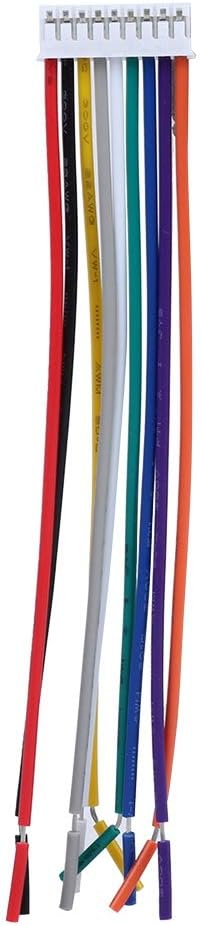
Figure 4: Included wiring harness with color-coded wires for connection to the access control system.
५.२. वायरिंग आकृती आणि कनेक्शन
Refer to the following video for a detailed demonstration of the wiring process for the access control keypad, power supply, and electric lock.
Video 1: Wiring of Wiegand Access Control System. This video demonstrates how to connect the RFID reader, power supply, electric lock (fail-safe and fail-secure), and exit button to the access control panel.
Ensure all connections are secure and follow local electrical codes. Incorrect wiring can damage the device or pose a safety risk.
5. ऑपरेटिंग सूचना
This section covers the basic operations of your access control keypad, including adding users and unlocking methods.
5.1. Default Admin Code
The default factory master code is 999999. This code is required to enter programming mode for adding or deleting users.
5.2. Adding Keyfobs (RFID Cards)
To add new RFID keyfobs for user access:
- Ensure the keypad is in standby mode (red light is always on).
- दाबा * to enter admin mode. The red light will flash.
- Enter the default admin code (999999) त्यानंतर # to confirm. The green light will illuminate, indicating successful entry into admin mode.
- दाबा 1 to enter the add user mode.
- Present the new keyfob to the keypad. The keypad will beep to confirm the addition. You can add multiple keyfobs consecutively.
- दाबा * प्रोग्रामिंग मोडमधून बाहेर पडण्यासाठी दोनदा.
Video 2: S601ID Add Keyfobs, Add User Code Operation. This video demonstrates the process of adding keyfobs and user codes to the access control system.
Video 3: How to add users with Retekess T-AC03? This video provides a general guide on adding users to an access control keypad, which can be applied to this model.
5.3. Adding User Codes (Passwords)
To add new user passwords for access:
- Ensure the keypad is in standby mode (red light is always on).
- दाबा * to enter admin mode. The red light will flash.
- Enter the default admin code (999999) त्यानंतर # to confirm. The green light will illuminate.
- दाबा 1 to enter the add user mode.
- Input a unique user number (e.g., 79) त्यानंतर #.
- Input a 4-digit user code (e.g., 2468) त्यानंतर # पुष्टी करण्यासाठी.
- दाबा * प्रोग्रामिंग मोडमधून बाहेर पडण्यासाठी दोनदा.
Video 4: K1201, K1202 Add User Code Operation. This video demonstrates the procedure for adding user codes to the access control keypad.
Video 5: K10 Keypad Add User Code. Another demonstration of adding user codes, providing additional visual guidance.
५.२. दरवाजा उघडणे
कीपॅड वापरून दरवाजा उघडण्यासाठी:
- Using RFID Key Card: Present a registered keyfob to the keypad's card reader zone. The door will unlock.
- पासवर्ड वापरणे: Enter your registered 4-digit user code followed by #. The door will unlock.
- Using RFID Key Card + Password: Present your registered keyfob, then enter your 4-digit user code followed by #. The door will unlock.
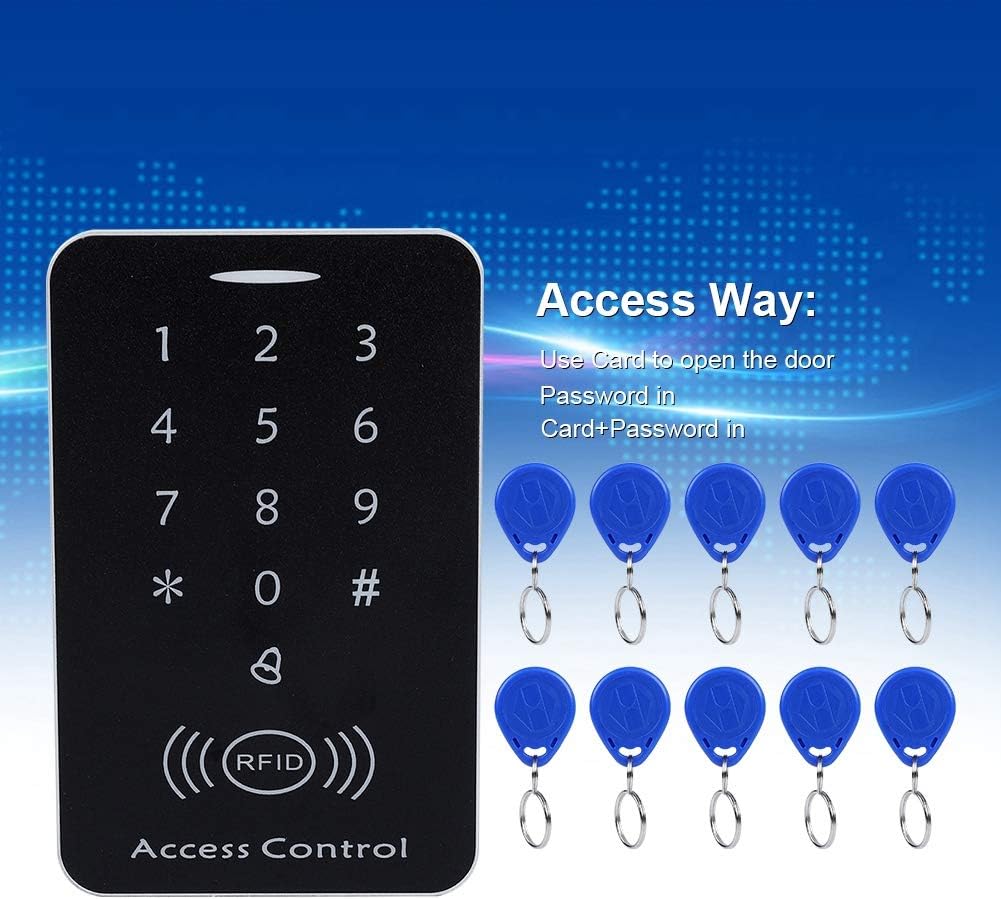
Figure 5: The keypad supports various access methods: card, password, or a combination of both.
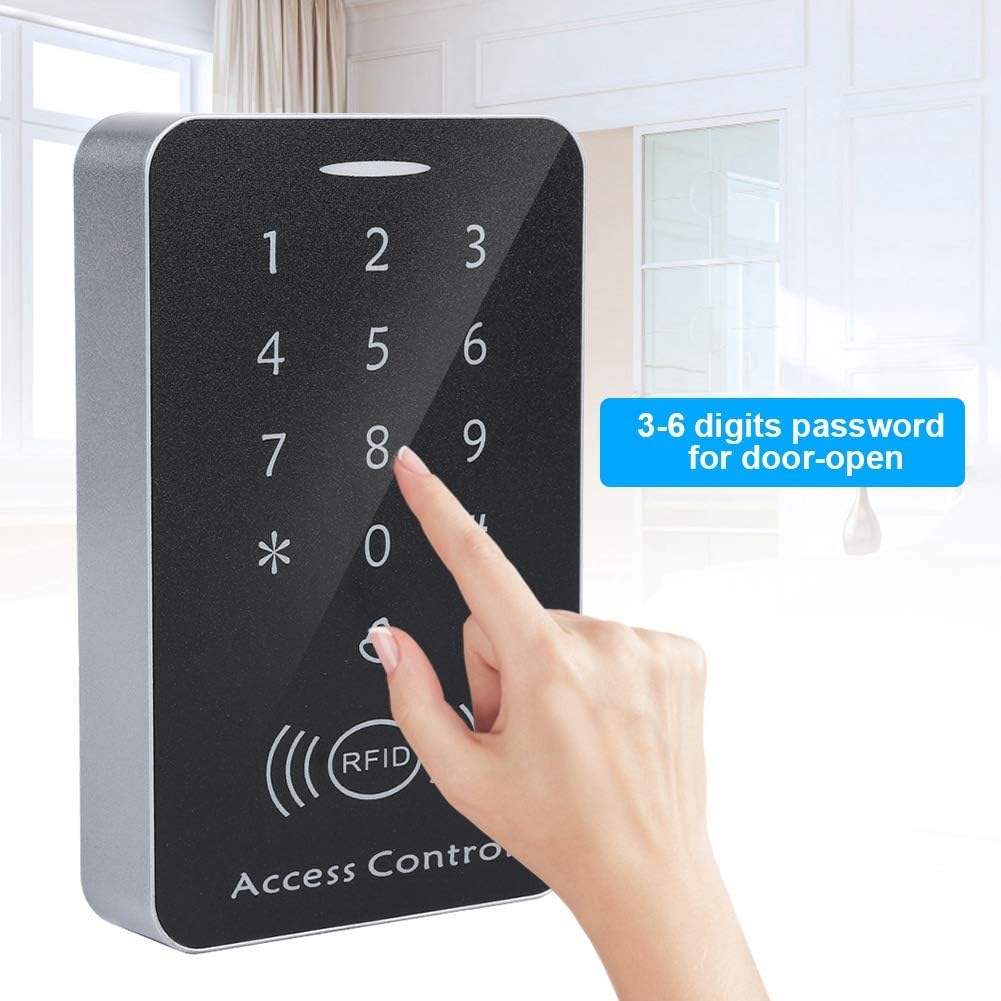
Figure 6: The keypad allows for 3-6 digit password entry for door access.
5.5. Tuya App Integration (If Applicable)
If your model supports Tuya App integration, follow these steps to connect and manage your access control system remotely.
Video 6: How to connect Tuya App. This video guides you through the process of connecting your access control keypad to the Tuya smart home application for remote management and unlocking.
6. देखभाल
To ensure the longevity and reliable operation of your access control keypad, follow these maintenance guidelines:
- स्वच्छता: Use a soft, dry cloth to clean the keypad surface. Avoid abrasive cleaners or solvents that could damage the finish or electronic components.
- वीज पुरवठा: Ensure a stable DC 12V power supply. Fluctuations can affect performance.
- नियमित चाचणी: Periodically test all access methods (card, password) to ensure they are functioning correctly.
- फर्मवेअर अद्यतने: निर्मात्याची तपासणी करा webकामगिरी सुधारण्यासाठी किंवा नवीन वैशिष्ट्ये जोडण्यासाठी उपलब्ध असलेल्या कोणत्याही फर्मवेअर अपडेटसाठी साइट.
7. समस्या निवारण
जर तुम्हाला तुमच्या अॅक्सेस कंट्रोल कीपॅडमध्ये समस्या येत असतील, तर खालील सामान्य समस्या आणि उपाय पहा:
- कीपॅड प्रतिसाद देत नाही:
- वीज पुरवठा कनेक्शन तपासा.
- Ensure the keypad is receiving the correct DC 12V voltage.
- RFID card not recognized:
- Ensure the card is properly registered in the system.
- Try another registered card to rule out a faulty card.
- Check the card reading distance (2-10cm).
- पासवर्ड काम करत नाहीये:
- Verify that the correct password and user number are being entered.
- Ensure the password is confirmed with #.
- If unsure, try resetting the user code or adding it again.
- दरवाजा उघडत नाही:
- Check the wiring connections to the electric lock.
- Ensure the electric lock is receiving power and functioning correctly.
- Verify the unlock mode settings (e.g., card only, password only, card + password).
- Cannot enter programming mode:
- Ensure you are pressing * followed by the correct admin code and #.
- If the admin code has been changed and forgotten, a factory reset might be necessary (refer to advanced settings or contact support).
8. हमी आणि समर्थन
For any product-related issues, please contact Sonew customer support. We are committed to providing timely assistance and solutions.
- हमी: विशिष्ट वॉरंटी अटी आणि शर्तींसाठी कृपया तुमच्या खरेदी दस्तऐवजीकरणाचा संदर्भ घ्या.
- ग्राहक समर्थन: For technical assistance or inquiries, visit the Sonew Store on Amazon किंवा विक्रेत्याशी थेट संपर्क साधा.