1. परिचय
This manual provides instructions for the Perixx PX-1000 Backlit Gaming Keyboard. It covers setup, operation, maintenance, and troubleshooting to ensure optimal performance and user experience. The PX-1000 is designed for various environments, including office, home, and gaming, featuring adjustable backlighting and a Windows key lock function.
2. उत्पादन संपलेview
2.1 प्रमुख वैशिष्ट्ये
- बॅकलिट की: Three-level adjustable backlighting for visibility in low-light conditions.
- रंग पर्याय: Switch between blue, red, and purple backlight colors.
- Windows Lock Function: Disable the Windows key to prevent accidental interruptions during gaming.
- USB कनेक्टिव्हिटी: Standard USB connection for broad compatibility.
2.2 कीबोर्ड लेआउट
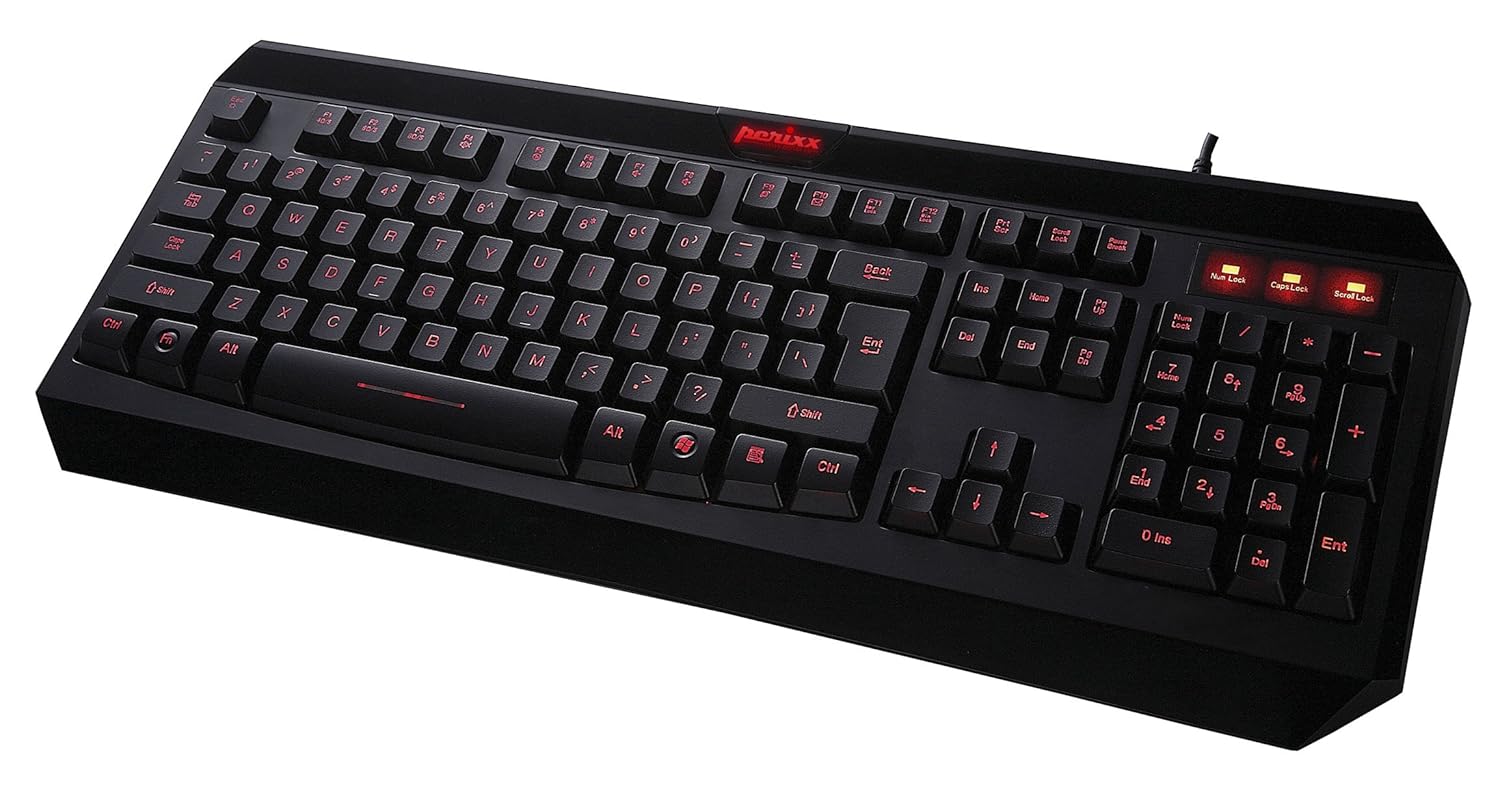
आकृती १: वरपासून खालपर्यंत view of the Perixx PX-1000 keyboard with red backlighting activated. This image displays the full QWERTY layout, numeric keypad, and function keys.

Figure 2.2: Technical diagram illustrating the key layout and dimensions of the Perixx PX-1000 keyboard.
3. सेटअप
- अनपॅक करणे: Carefully remove the keyboard from its packaging. Ensure all components, including the USB cable, are present.
- कनेक्शन: तुमच्या संगणकावरील उपलब्ध असलेल्या USB पोर्टमध्ये कीबोर्डचा USB कनेक्टर प्लग करा.
- ड्राइव्हर स्थापना: The Perixx PX-1000 is a plug-and-play device. Your operating system (Windows) should automatically detect and install the necessary drivers. No additional software installation is typically required.
- प्लेसमेंट: Position the keyboard comfortably on your desk.
4. ऑपरेटिंग सूचना
4.1 बॅकलाइट कंट्रोल
The PX-1000 features adjustable backlighting with multiple color options.
- Changing Backlight Color: दाबा Fn की + स्क्रोल लॉक key simultaneously to cycle through the available backlight colors: Blue, Red, and Purple.
- बॅकलाइट ब्राइटनेस समायोजित करणे: दाबा Fn की + पृष्ठ वर key to increase brightness, and Fn की + पृष्ठ खाली key to decrease brightness. There are three brightness levels.
- Turning Backlight On/Off: To turn off the backlight, cycle through the brightness levels until it is off, or press Fn की + स्क्रोल लॉक until the backlight is off.
4.2 Windows Key Lock Function
To prevent accidental activation of the Windows Start menu during intensive tasks or gaming, the Windows key can be disabled.
- Activating/Deactivating Windows Key Lock: दाबा Fn की + विंडोज की simultaneously. An indicator light (usually near the Num Lock/Caps Lock indicators) will illuminate when the Windows key is locked. Repeat the combination to unlock.
5. देखभाल
Proper maintenance ensures the longevity and performance of your keyboard.
- स्वच्छता: Use a soft, dry cloth to wipe the surface of the keyboard. For deeper cleaning, use a can of compressed air to remove dust and debris from between the keys. Avoid using harsh chemicals or abrasive materials.
- गळती: In case of liquid spills, immediately disconnect the keyboard from your computer. Turn it upside down to drain any liquid and allow it to dry completely before reconnecting. Do not attempt to use the keyboard while it is wet.
- स्टोरेज: जास्त काळ वापरात नसताना, कीबोर्ड अत्यंत तापमानापासून दूर स्वच्छ, कोरड्या वातावरणात ठेवा.
6. समस्या निवारण
| समस्या | संभाव्य कारण | उपाय |
|---|---|---|
| कीबोर्ड प्रतिसाद देत नाही. | सैल यूएसबी कनेक्शन, सदोष यूएसबी पोर्ट, ड्रायव्हर समस्या. |
|
| Backlight not working or stuck on one color. | Backlight function not activated, incorrect settings. |
|
| Windows key not functioning. | Windows key lock is active. | दाबा Fn + विंडोज की to toggle the lock function. Check the indicator light. |
| कळा चिकट किंवा प्रतिसाद न देणाऱ्या असतात. | चाव्याखाली कचरा, द्रवाचे नुकसान. |
|
7. तपशील

Figure 7.1: Detailed dimensions of the Perixx PX-1000 keyboard.
| वैशिष्ट्य | तपशील |
|---|---|
| ब्रँड | पेरिक्स |
| मॉडेल क्रमांक | PX-1000 (Item model number: 10992) |
| रंग | Black, Red (Backlight colors: Blue, Red, Purple) |
| कनेक्टिव्हिटी तंत्रज्ञान | यूएसबी |
| सुसंगत साधने | PC |
| ऑपरेटिंग सिस्टम | खिडक्या |
| उत्पादनाचे परिमाण (LxWxH) | ९.४ x ५.६ x २.५९ सेमी (३.७ x २.२१ x १.०२ इंच) |
| आयटम वजन | ५७३.५ ग्रॅम (१.२६ पौंड) |
| समाविष्ट घटक | यूएसबी केबल |
| विशेष वैशिष्ट्य | बॅकलिट |
8. हमी आणि समर्थन
For warranty information and technical support, please refer to the documentation included with your product or visit the official Perixx website. Perixx provides customer support for product-related inquiries and assistance with troubleshooting.
ऑनलाइन संसाधने: अतिरिक्त समर्थन आणि उत्पादन माहितीसाठी, तुम्ही येथे भेट देऊ शकता Amazon वर Perixx स्टोअर.


