
परिचय
This manual provides detailed instructions for setting up, operating, and maintaining your Dopesplay 16" 120Hz Portable Gaming Monitor. Designed for versatility and high performance, this monitor offers a 16-inch 1200P FHD IPS display with 100% sRGB color gamut and a 120Hz refresh rate, making it suitable for gaming, professional work, and entertainment on the go. Please read this manual thoroughly to ensure optimal use and longevity of your device.
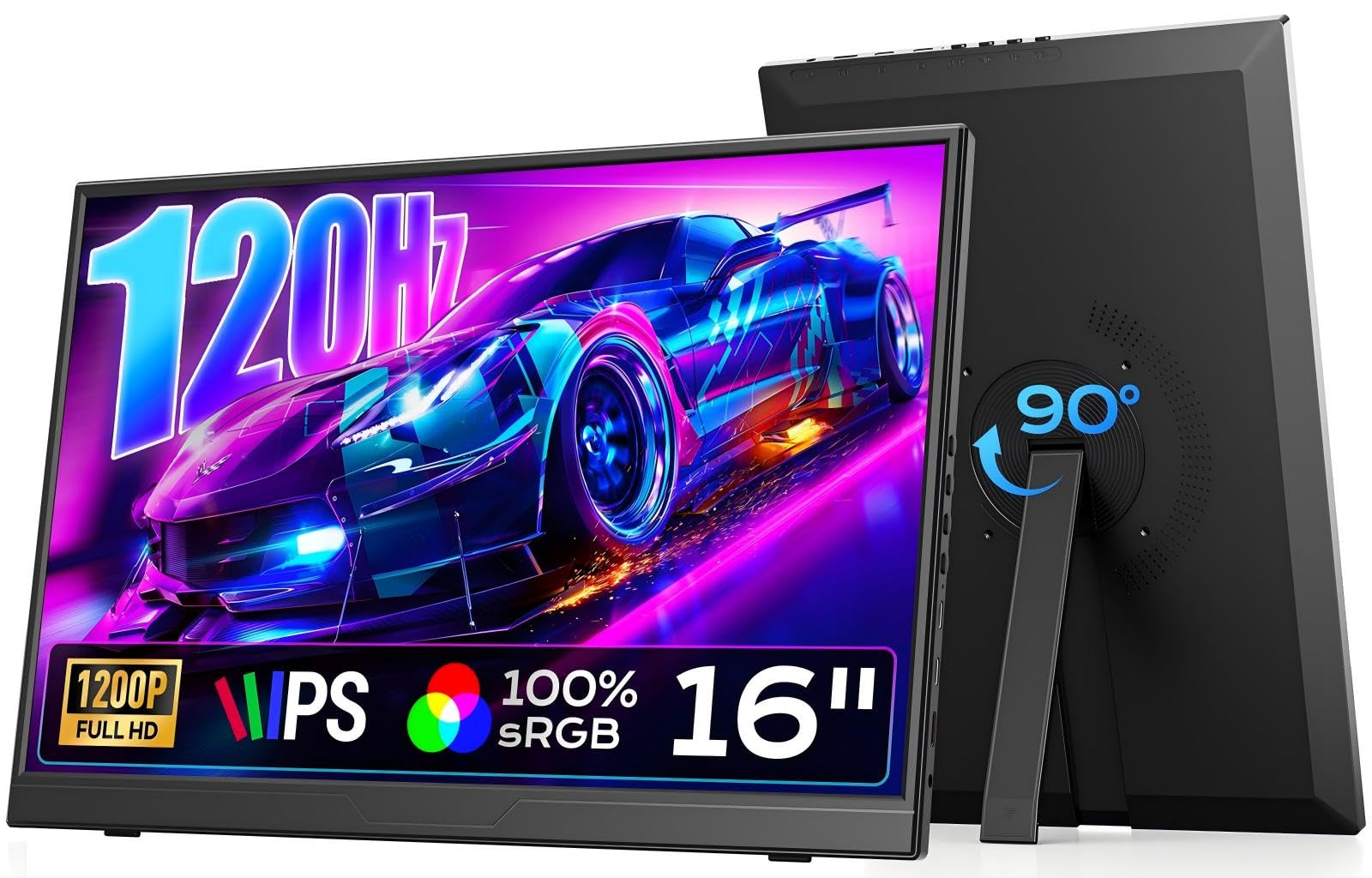
Image: The Dopesplay 16-inch 120Hz Portable Gaming Monitor, showcasinत्याची आकर्षक रचना आणि आकर्षक डिस्प्ले.
पॅकेज सामग्री
खाली सूचीबद्ध केलेल्या सर्व वस्तू तुमच्या पॅकेजमध्ये समाविष्ट आहेत याची खात्री करा:
- 1 x Dopesplay 16" Portable Monitor
- 1 x USB-C to USB-C Cable (Full-Featured)
- १ x HDMI ते मिनी HDMI केबल
- 1 x USB-A ते USB-C केबल
- 1 x चार्जिंग अडॅप्टर
- 1 x वापरकर्ता मॅन्युअल

Image: Contents of the Dopesplay portable monitor package, showing the monitor, various cables, a charging adapter, and the user manual.
सेटअप
Follow these steps to set up your Dopesplay portable monitor:
१. भौतिक व्यवस्था
- मॉनिटरची स्थिती: Unfold the built-in rotatable stand to position the monitor on a stable surface. The stand supports both landscape and portrait orientations.
- पॉवरशी कनेक्ट करत आहे:
- If your device (laptop/phone) has a full-function USB-C port, a single USB-C to USB-C cable can provide both power and video signal.
- If your device's USB-C port is not full-function, or if you are using the Mini HDMI port, connect the included USB-A to USB-C cable to the monitor for power, and plug the USB-A end into the charging adapter or a powered USB-A port on your device.
- Always ensure the monitor receives adequate power for stable operation.

Image: A Dopesplay portable monitor connected to a laptop via a single USB-C cable, demonstrating a streamlined connection for both power and display.

Image: A Dopesplay portable monitor connected to a laptop using an HDMI cable for video and a USB-A to USB-C cable for power, illustrating dual cable connection.
२. उपकरणांशी कनेक्ट करणे
- USB-C Connection (Full-Featured):
Connect one end of the full-featured USB-C to USB-C cable to your device's USB-C port and the other end to one of the monitor's USB-C ports. This single cable can transmit video, audio, and power (if your device supports power delivery).
यांच्याशी सुसंगत: Laptops, Mini PCs, Pads, iPhones (with appropriate adapters), and other devices with full-function USB-C ports.
- HDMI कनेक्शन:
Connect one end of the HDMI to Mini HDMI cable to your device's HDMI port and the Mini HDMI end to the monitor's Mini HDMI port. You will also need to connect the USB-A to USB-C cable for power.
यांच्याशी सुसंगत: PS4/5, Xbox, Gaming Consoles, PCs, and other devices with HDMI output.

Image: An illustration of the Dopesplay portable monitor's various ports (USB-C, Mini HDMI, 3.5mm Audio) and a list of compatible devices including laptops, gaming consoles, and smartphones.
ऑपरेटिंग सूचना
मॉनिटर नियंत्रणे
The monitor features several buttons on its side for easy control:
- Power / Return Button: Press and hold to power the monitor on/off. Short press to return in OSD menu.
- ब्राइटनेस ऍडजस्टमेंट: स्क्रीनची चमक समायोजित करा.
- आवाज समायोजन: Control the audio output volume.
- OSD मेनू: Access the On-Screen Display menu for advanced settings.

प्रतिमा: सविस्तर view of the monitor's control buttons and ports, including Power/Return, Brightness, Volume, OSD Menu, USB-C, Mini HDMI, and 3.5mm Audio.
प्रदर्शन मोड
The Dopesplay portable monitor supports various display modes to enhance your productivity and entertainment:
- मिररमोड: Duplicates your primary screen's content.
- विस्तारित मोड: Extends your desktop, providing additional screen space for multitasking.
- पोर्ट्रेट मोड: Allows you to rotate the display vertically for tasks like coding, document reading, or social media browsing. Note: Auto-rotation is not supported. Manually adjust "Display Orientation" in your device's settings.
- फक्त दुसरी स्क्रीन: Displays content only on the portable monitor.

Image: A Dopesplay portable monitor displaying different modes: Mirror, Extended, Portrait, and Second Screen, illustrating its versatility for various uses like gaming and productivity.
Adjusting Display Settings (OSD Menu)
Use the OSD Menu button to navigate and adjust settings such as:
- ब्राइटनेस आणि कॉन्ट्रास्ट
- Color Temperature and Gamut
- इनपुट स्रोत निवड
- गुणोत्तर
- HDR सेटिंग्ज
- ऑडिओ सेटिंग्ज
देखभाल
To ensure the longevity and optimal performance of your Dopesplay portable monitor, follow these maintenance guidelines:
- स्क्रीन साफ करणे: मऊ, लिंट-फ्री कापड किंचित वापरा dampened with water or a non-abrasive screen cleaner. Avoid harsh chemicals, alcohol, or ammonia-based cleaners, as they can damage the screen surface.
- सी साफ करणेasing: मॉनिटरचा कव्हर पुसून टाका.asinमऊ, कोरड्या कापडाने पुसून टाका.
- स्टोरेज: When not in use, store the monitor in a cool, dry place, away from direct sunlight and extreme temperatures. Use the included protective sleeve or a similar soft cover to prevent scratches.
- हाताळणी: मॉनिटरला नेहमी त्याच्या कडांजवळ धरा. स्क्रीनवर दाब देणे टाळा.
- वायुवीजन: जास्त गरम होण्यापासून रोखण्यासाठी मॉनिटरचे वायुवीजन उघडे बंद केलेले नाहीत याची खात्री करा.
समस्यानिवारण
If you encounter issues with your Dopesplay portable monitor, refer to the following common problems and solutions:
- No Signal / Black Screen:
- Ensure all cables (USB-C, HDMI, power) are securely connected.
- Verify that your device's output port is functioning correctly.
- Check if the monitor is receiving sufficient power. If using HDMI, ensure the USB-C power cable is also connected.
- तुमच्या डिव्हाइसवर वेगळी केबल किंवा पोर्ट वापरून पहा.
- In your device's display settings, ensure the external monitor is detected and enabled.
- चमकणारा स्क्रीन:
- Ensure the power supply is stable and sufficient.
- सैल केबल कनेक्शन तपासा.
- Reduce the refresh rate in your device's display settings if the issue persists.
- ऑडिओ नाही:
- Check the monitor's volume settings using the control buttons.
- Ensure your device's audio output is directed to the portable monitor.
- If using external speakers or headphones, ensure they are properly connected to the monitor's 3.5mm audio jack.
- Incorrect Display Orientation (Portrait Mode):
- The monitor does not support auto-rotation. Manually adjust "Display Orientation" in your laptop's or device's display settings.
तपशील
| वैशिष्ट्य | तपशील |
|---|---|
| ब्रँड | डोपप्ले |
| मॉडेल क्रमांक | DR1607 |
| स्क्रीन आकार | 16 इंच |
| ठराव | FHD १०८०p (१९२० x १०८० पिक्सेल) |
| गुणोत्तर | १६:१० |
| रीफ्रेश दर | 120 Hz |
| प्रतिसाद वेळ | 3 मिलीसेकंद |
| डिस्प्ले प्रकार | LCD (IPS Panel) |
| स्क्रीन पृष्ठभागाचे वर्णन | मॅट |
| Viewकोन | 178 अंश |
| रंग सरगम | 100% sRGB |
| Picture Quality Enhancement | IPS, HDR |
| कनेक्टिव्हिटी तंत्रज्ञान | USB-C (Full-Featured), Mini HDMI |
| Total USB-C Ports | 2 (Thunderbolt Ports) |
| एकूण HDMI पोर्ट | 1 (Mini HDMI) |
| ऑडिओ आउटपुट | 3.5 मिमी ऑडिओ जॅक |
| अडॅप्टिव्ह सिंक | फ्रीसिंक |
| आयटमचे परिमाण (D x W x H) | १६"उ x २६"प x ४७"उ |
| आयटम वजन | ०.९ किलोग्रॅम (अंदाजे २ पौंड) |
| रंग | काळा |
| अतिरिक्त वैशिष्ट्ये | Portable, Built-in Rotatable Stand |
हमी आणि समर्थन
Dopesplay provides the following warranty and support for your monitor:
- हमी: 12-month manufacturer warranty.
- तांत्रिक समर्थन: आजीवन तांत्रिक सहाय्य उपलब्ध आहे.
- संपर्क: If you receive a damaged or missing item, or require technical assistance, please contact Dopesplay customer support. Refer to the contact information provided in your product packaging or on the official Dopesplay webसाइट