
1. परिचय
This manual provides essential information for the safe and efficient operation of your Next YE-65GFSG8-QLED 65-inch UHD 4K Google QLED TV. Please read this manual thoroughly before using the television and retain it for future reference. Your new television combines QLED display technology with the Google TV operating system, offering a high-quality viewing experience and smart features.
2. महत्वाची सुरक्षितता माहिती
Always follow these basic safety precautions when operating your television:
- उर्जा स्त्रोत: टीव्ही निर्दिष्ट व्हॉल्यूममध्ये वीज पुरवठ्याशी जोडलेला आहे याची खात्री कराtagई श्रेणी.
- वायुवीजन: वायुवीजन उघड्या जागा बंद करू नका. योग्य हवेच्या प्रवाहासाठी टीव्हीभोवती पुरेशी जागा द्या.
- पाणी आणि ओलावा: टीव्हीला पाऊस किंवा ओलावा येऊ देऊ नका. फुलदाण्यांसारख्या द्रवपदार्थांनी भरलेल्या वस्तू टीव्हीवर ठेवू नका.
- स्वच्छता: स्वच्छ करण्यापूर्वी टीव्ही पॉवर आउटलेटमधून अनप्लग करा. मऊ, कोरडा कापड वापरा. लिक्विड क्लीनर किंवा एरोसोल क्लीनर वापरू नका.
- प्लेसमेंट: टीव्ही एका स्थिर, समतल पृष्ठभागावर ठेवा. तो थेट सूर्यप्रकाशात किंवा उष्णतेच्या स्रोतांजवळ ठेवू नका.
- विजा: During lightning storms or when unused for long periods, unplug the TV from the power outlet and disconnect the antenna.
- सर्व्हिसिंग: या उत्पादनाची स्वतः सेवा करण्याचा प्रयत्न करू नका. पात्र सेवा कर्मचाऱ्यांना सर्व सेवांचा संदर्भ द्या.
3. पॅकेज सामग्री
Verify that all items are present in your TV package:
- Next YE-65GFSG8-QLED 65-inch UHD 4K Google QLED TV
- रिमोट कंट्रोल
- पॉवर केबल
- टीव्ही स्टँड (२ तुकडे) आणि स्क्रू
- वापरकर्ता मॅन्युअल (हा दस्तऐवज)
- द्रुत प्रारंभ मार्गदर्शक
4. सेटअप
4.1 भौतिक स्थापना
You can install your TV on a stand or mount it on a wall. Ensure the TV is placed on a stable surface or securely mounted.

प्रतिमा: TV Dimensions. This image illustrates the physical dimensions of the 65-inch television, including its width, height, and diagonal screen size of 164 cm (65 inches).
स्टँड स्थापना:
- स्क्रीनचे नुकसान टाळण्यासाठी टीव्ही काळजीपूर्वक मऊ, सपाट पृष्ठभागावर खाली ठेवा.
- Attach the two stand pieces to the designated slots on the bottom of the TV.
- दिलेल्या स्क्रूने स्टँड सुरक्षित करा.
- टीव्हीला स्थिर पृष्ठभागावर काळजीपूर्वक त्याच्या सरळ स्थितीत उचला.
वॉल माउंटिंग:
For wall mounting, use a VESA-compatible wall mount kit (sold separately) that matches the TV's VESA pattern. Follow the instructions provided with your wall mount kit. It is recommended to have professional assistance for wall mounting.
4.2 कनेक्टिंग पेरिफेरल्स
Connect your external devices to the appropriate ports on the back of your TV.
प्रतिमा: Rear Panel Connections. This image displays the various input and output ports located on the back of the television, including HDMI, USB, DVB-S, DVB-T, CI Module, Mini AV-IN, Optical Out, and Ethernet.
- एचडीएमआय (एआरसी): Connect Blu-ray players, game consoles, or other HDMI devices. HDMI 1 supports Audio Return Channel (ARC).
- यूएसबी (२x): मीडिया प्लेबॅकसाठी USB स्टोरेज डिव्हाइस कनेक्ट करा.
- DVB-S / DVB-T: Connect satellite (DVB-S) or terrestrial (DVB-T) antenna cables.
- CI Module: Insert a Common Interface (CI) module for encrypted digital channels.
- Mini AV-IN: Connect older devices using an AV adapter cable.
- ऑप्टिकल आउट: Connect to an external audio system for digital audio output.
- इथरनेट: वायर्ड इंटरनेट कनेक्शनसाठी इथरनेट केबल कनेक्ट करा.
- शक्ती: पॉवर केबल टीव्हीला आणि नंतर भिंतीवरील आउटलेटला जोडा.
१.४ सुरुवातीचा पॉवर ऑन आणि पहिल्यांदाच सेटअप
- After connecting all cables, plug the power cord into an electrical outlet.
- रिमोट कंट्रोल किंवा टीव्हीवरील पॉवर बटण दाबा.
- टीव्ही तुम्हाला सुरुवातीच्या सेटअप प्रक्रियेत मार्गदर्शन करेल, ज्यामध्ये हे समाविष्ट आहे:
- भाषा निवड
- वाय-फाय किंवा इथरनेटशी कनेक्ट करत आहे
- Signing in with your Google Account (required for Google TV features)
- अटी आणि शर्ती स्वीकारत आहे
- Channel scanning (for DVB-S/T)
- सेटअप पूर्ण करण्यासाठी ऑन-स्क्रीन सूचनांचे अनुसरण करा.
5. आपला टीव्ही ऑपरेट करणे
5.1 रिमोट कंट्रोल फंक्शन्स
The remote control allows you to navigate the TV's features. Familiarize yourself with its buttons:
- शक्ती: टीव्ही चालू किंवा बंद करते.
- Google सहाय्यक: व्हॉइस कमांड सक्रिय करते.
- नेव्हिगेशन पॅड (वर/खाली/डावीकडे/उजवीकडे/ठीक आहे): मेनू नेव्हिगेट करते आणि पर्याय निवडते.
- मागे: मागील स्क्रीनवर परत येतो.
- घर: Google TV होम स्क्रीन अॅक्सेस करते.
- खंड +/-: व्हॉल्यूम पातळी समायोजित करते.
- चॅनल +/-: टीव्ही चॅनेल बदलतो.
- इनपुट: इनपुट स्रोत (HDMI, AV, इ.) निवडते.
- अॅप बटणे: Direct access to popular streaming applications.
5.2 Navigating Google TV Interface
Google TV organizes your entertainment with a personalized home screen. Content from your apps is brought together and organized for easy discovery.

प्रतिमा: Google TV Interface. This image shows the main Google TV home screen with various streaming app icons and content recommendations, demonstrating the user interface.
- होम स्क्रीन: Displays personalized recommendations, installed apps, and quick access to content.
- तुमच्यासाठी टॅब: Provides tailored content suggestions based on your viewसवयी लावणे.
- लाइव्ह टॅब: Accesses live TV channels from integrated services.
- अॅप्स टॅब: Shows all installed applications. You can download more from the Google Play Store.
- लायब्ररी टॅब: Accesses your purchased or rented content from Google Play.
३.३ चित्र आणि ध्वनी सेटिंग्ज
चित्र आणि आवाज सेटिंग्ज समायोजित करण्यासाठी:
- दाबा सेटिंग्ज button (usually a gear icon) on your remote.
- वर नेव्हिगेट करा डिस्प्ले आणि ध्वनी.
- चित्र सेटिंग्ज: Adjust brightness, contrast, color, sharpness, and select picture modes (e.g., Standard, Vivid, Movie, Game). Your QLED TV offers enhanced color saturation.
- ध्वनी सेटिंग्ज: Adjust bass, treble, balance, and select sound modes (e.g., Standard, Music, Movie, Speech).

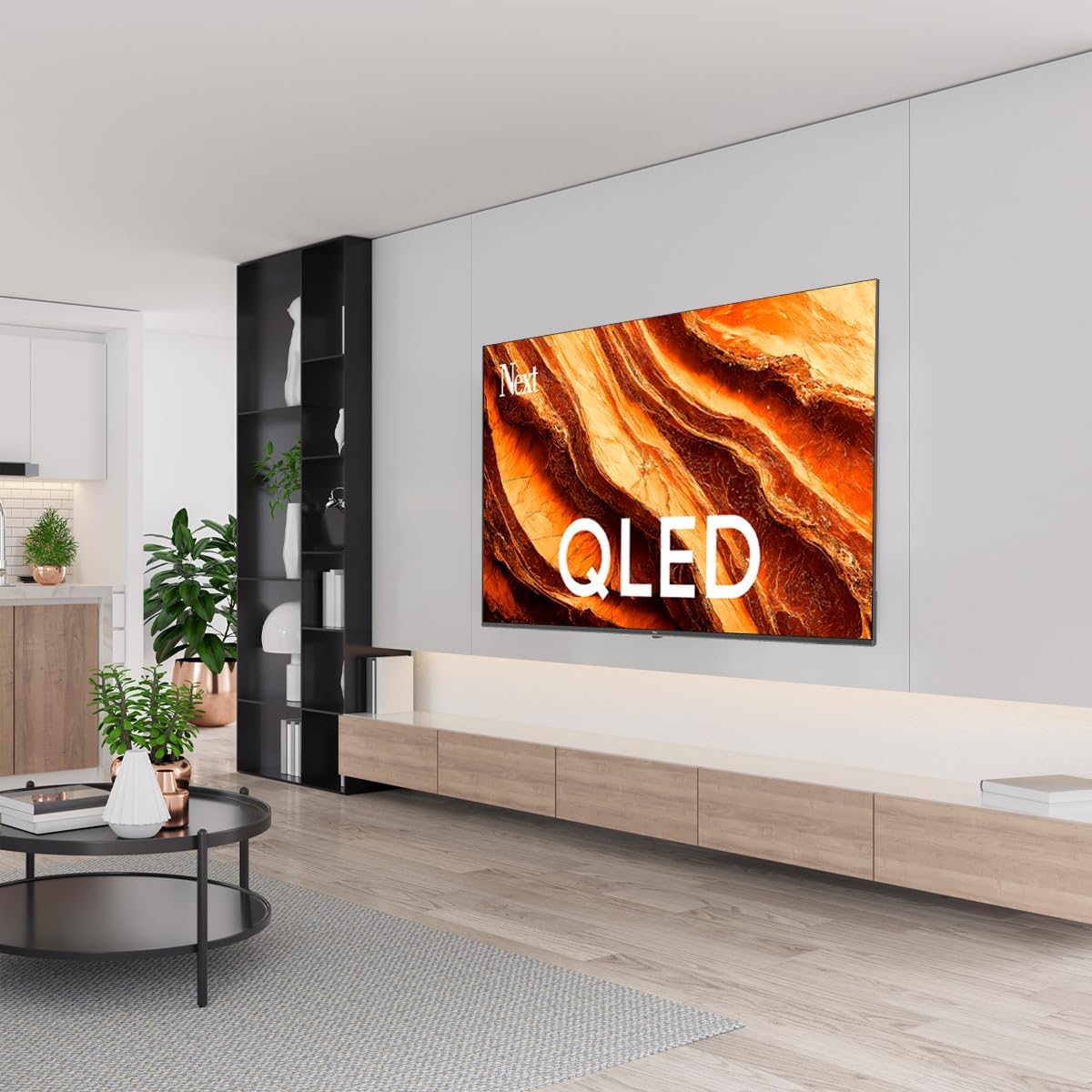
प्रतिमा: QLED Color Saturation. This image visually demonstrates the high color saturation achieved with QLED technology, showing a vibrant and rich color display.

प्रतिमा: HDR (High Dynamic Range). This image illustrates the visual impact of HDR, showcasing improved contrast and color detail in a scene when HDR is enabled versus when it is off.
5.4 नेटवर्क सेटिंग्ज
तुमचा टीव्ही इंटरनेटशी कनेक्ट करण्यासाठी:
- दाबा सेटिंग्ज तुमच्या रिमोटवरील बटण.
- वर नेव्हिगेट करा नेटवर्क आणि इंटरनेट.
- निवडा वाय-फाय to connect to a wireless network or ensure इथरनेट is connected for a wired connection.
- वाय-फायसाठी, सूचीमधून तुमचे नेटवर्क निवडा आणि पासवर्ड एंटर करा.
6. देखभाल
६.१ टीव्ही साफ करणे
- स्वच्छ करण्यापूर्वी टीव्ही नेहमी अनप्लग करा.
- स्क्रीन आणि टीव्ही बॉडी हळूवारपणे पुसण्यासाठी मऊ, कोरडे, लिंट-फ्री कापड वापरा.
- हट्टी गुणांसाठी, हलकेचampen the cloth with water or a specialized screen cleaner (ensure it's safe for TV screens). Never spray cleaner directly onto the screen.
- अपघर्षक क्लीनर, मेण किंवा सॉल्व्हेंट्स वापरणे टाळा.
6.2 सॉफ्टवेअर अद्यतने
Your TV may receive software updates to improve performance and add new features. It is recommended to keep your TV's software updated.
- तुमचा टीव्ही इंटरनेटशी कनेक्ट केलेला असल्याची खात्री करा.
- दाबा सेटिंग्ज तुमच्या रिमोटवरील बटण.
- वर नेव्हिगेट करा प्रणाली > बद्दल > सिस्टम अपडेट.
- निवडा अद्यतनासाठी तपासा.
- उपलब्ध अपडेट्स डाउनलोड आणि इन्स्टॉल करण्यासाठी स्क्रीनवरील सूचनांचे अनुसरण करा.
7. समस्या निवारण
जर तुम्हाला तुमच्या टीव्हीमध्ये समस्या येत असतील, तर खालील सामान्य समस्या आणि उपाय पहा:
| समस्या | संभाव्य कारण / उपाय |
|---|---|
| शक्ती नाही | Check if the power cord is securely plugged into the TV and the wall outlet. Ensure the outlet is working. |
| चित्र नाही, पण आवाज आहे. | Check the input source. Ensure the connected device is turned on and functioning correctly. |
| आवाज नाही, पण चित्र आहे. | Check the volume level and mute status. Verify audio cable connections for external devices. Check TV sound settings. |
| रिमोट कंट्रोल काम करत नाही | बॅटरी बदला. रिमोट आणि टीव्हीच्या आयआर सेन्सरमध्ये कोणतेही अडथळे नाहीत याची खात्री करा. |
| Wi-Fi शी कनेक्ट करू शकत नाही | Ensure your Wi-Fi router is on and within range. Re-enter the Wi-Fi password carefully. Try restarting the TV and router. |
| अॅप्स हळू किंवा गोठत आहेत | Close unused apps. Clear app cache (Settings > Apps > See all apps > [App Name] > Clear cache). Ensure a stable internet connection. |
या उपाययोजना वापरूनही समस्या कायम राहिल्यास, कृपया ग्राहक समर्थनाशी संपर्क साधा.
8. तपशील
Technical specifications for the Next YE-65GFSG8-QLED 65-inch UHD 4K Google QLED TV:
- ब्रँड: पुढे
- मॉडेल वर्ष: 2025
- ठराव: ४ के (३८४०x२१६०)
- प्रदर्शन तंत्रज्ञान: QLED
- स्क्रीन आकार: 65 इंच (165 सेमी)
- गुणोत्तर: १६:१०
- रीफ्रेश दर: 60 Hz
- प्रमुख वैशिष्ट्ये: फ्रेमलेस डिझाइन
- कनेक्टिव्हिटी: Bluetooth, Ethernet, HDMI (ARC), USB (2x), Wi-Fi
- उत्पादन परिमाणे: २३डी x १२३.५वॅट x ७८एच सेमी
- वजन: 16.3 किलोग्रॅम
- ऑपरेटिंग सिस्टम: Google TV
- समाविष्ट घटक: रिमोट कंट्रोल
- मूळ देश: तुर्की
9. हमी आणि समर्थन
Your Next YE-65GFSG8-QLED TV comes with a manufacturer's warranty. Please refer to the warranty card included in your package for specific terms and conditions, including the warranty period and coverage details.
For technical support, service requests, or further assistance, please contact Next customer service. Contact information can typically be found on the manufacturer's webसाइट किंवा वॉरंटी दस्तऐवजीकरणात.
- ऑनलाइन समर्थन: Visit the official Next website for FAQs, troubleshooting guides, and support contact details.
- सेवा केंद्रे: For hardware issues, locate an authorized service center near you.