
TESLA 65E635SUS
Tesla 65-inch 4K UHD Smart TV User Manual
Model: 65E635SUS
परिचय
This manual provides essential instructions for setting up, operating, maintaining, and troubleshooting your new Tesla 65-inch 4K UHD Smart TV (Model 65E635SUS). Please read this manual thoroughly before using the television to ensure proper operation and to maximize your viewअनुभव. भविष्यातील संदर्भासाठी ही पुस्तिका ठेवा.
महत्वाची सुरक्षितता माहिती: Always follow basic safety precautions when using this product to reduce the risk of fire, electric shock, and injury. Do not attempt to service this product yourself. Refer all servicing to qualified service personnel.
1. सेटअप
३.१ अनपॅकिंग आणि सामग्री तपासणी
टीव्ही पॅकेजिंगमधून काळजीपूर्वक काढा. सर्व घटक उपस्थित असल्याची खात्री करा:
- Tesla 65-inch 4K UHD Smart TV
- रिमोट कंट्रोल
- रिमोट कंट्रोलसाठी एएए बॅटरीज
- टीव्ही स्टँड (२ तुकडे)
- टीव्ही स्टँडसाठी स्क्रू
- पॉवर कॉर्ड
- वापरकर्ता मॅन्युअल (हा दस्तऐवज)

प्रतिमा 1.1: समोर view of the Tesla 65-inch Smart TV with its stand.
३.१ टीव्ही स्टँड जोडणे
- स्क्रीनचे नुकसान टाळण्यासाठी टीव्हीचा चेहरा मऊ, सपाट पृष्ठभागावर खाली ठेवा.
- प्रत्येक स्टँडचा तुकडा टीव्हीच्या तळाशी असलेल्या संबंधित स्लॉटसह संरेखित करा.
- प्रत्येक स्टँड पीस दिलेल्या स्क्रूने सुरक्षित करा. ते घट्ट घट्ट केले आहेत याची खात्री करा.

प्रतिमा 1.2: मागील view टीव्हीचा, स्टँड अटॅचमेंट पॉइंट्स दर्शवितो.
टीप: If you plan to wall-mount the TV, refer to the wall-mount kit instructions (sold separately) and skip this step. Ensure proper ventilation when wall-mounting.
1.3 कनेक्टिंग पॉवर
पॉवर कॉर्ड टीव्हीच्या पॉवर इनपुटला आणि नंतर भिंतीवरील आउटलेटला जोडा. टीव्ही स्टँडबाय मोडमध्ये जाईल.
1.4 प्रारंभिक सेटअप
पहिल्यांदा पॉवर-ऑन केल्यावर, टीव्ही तुम्हाला सुरुवातीच्या सेटअप प्रक्रियेत मार्गदर्शन करेल:
- भाषा निवड: तुमची पसंतीची भाषा निवडा.
- नेटवर्क जोडणी: तुमच्या वाय-फाय नेटवर्कशी कनेक्ट करा किंवा वायर्ड कनेक्शनसाठी इथरनेट केबल वापरा.
- गुगल अकाउंट साइन-इन: Sign in with your Google account to access Google Play Store, Google Assistant, and other Android TV features.
- चॅनेल स्कॅन: Scan for available TV channels if you are using an antenna or cable connection.
- गोपनीयता सेटिंग्ज: Review आणि इच्छेनुसार गोपनीयता सेटिंग्ज समायोजित करा.
2. ऑपरेटिंग सूचना
2.1 रिमोट कंट्रोल ओव्हरview
The provided remote control allows you to navigate the TV's features. Insert the AAA batteries into the remote control before use.

Image 2.1: Bluetooth remote control for the Tesla Smart TV.
- पॉवर बटण: टीव्ही चालू किंवा बंद करते (स्टँडबाय मोड).
- नेव्हिगेशन पॅड (वर/खाली/डावीकडे/उजवीकडे/ठीक आहे): मेनू नेव्हिगेट करते आणि आयटम निवडते.
- मागे बटण: मागील स्क्रीनवर परत येतो.
- होम बटण: Android TV होम स्क्रीन अॅक्सेस करते.
- आवाज वर/खाली: व्हॉल्यूम पातळी समायोजित करते.
- बटण नि: शब्द करा आवाज म्यूट किंवा अनम्यूट करा.
- गुगल असिस्टंट बटण: व्हॉइस कंट्रोल सक्रिय करते.
- अॅप शॉर्टकट बटणे: Direct access to popular streaming services (e.g., Netflix, YouTube).
2.2 Android TV 11 Interface Navigation
The Android TV 11 interface provides access to apps, settings, and content. Use the navigation pad on your remote to move through the home screen.
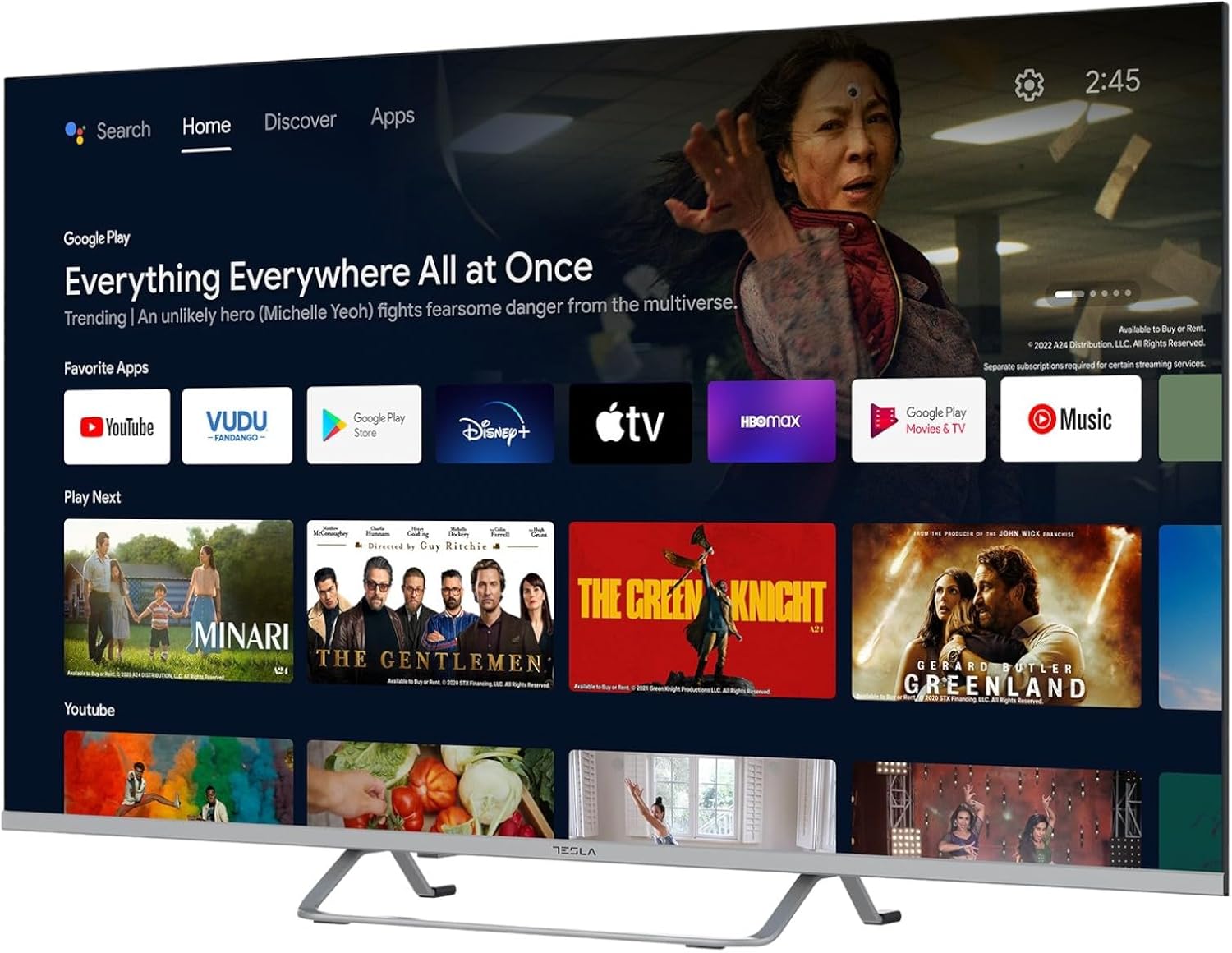
Image 2.2: The Android TV 11 home screen, displaying various applications and content suggestions.
- होम स्क्रीन: शिफारस केलेली सामग्री, स्थापित केलेले अॅप्स आणि इनपुट स्रोत प्रदर्शित करते.
- Apps Section: सर्व स्थापित अनुप्रयोगांमध्ये प्रवेश करा.
- सेटिंग्ज: Configure TV settings, network, accounts, and device preferences.
४.४ गुगल असिस्टंट वापरणे
Press the Google Assistant button on your remote and speak into the microphone to control your TV, search for content, get information, and more.
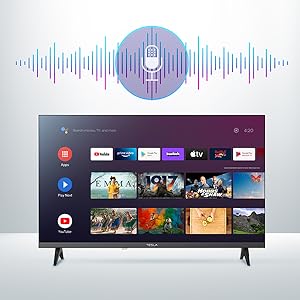
Image 2.3: Visual representation of Google Assistant activation on the TV screen.
Examples of commands:
- "नेटफ्लिक्स उघडा"
- "साठी शोधा अॅक्शन चित्रपट"
- "हवामान कसे आहे?"
- "Turn up the volume"
2.4 Chromecast अंगभूत
Use Chromecast built-in to cast content from your compatible smartphone, tablet, or computer directly to your TV. Ensure your device is connected to the same Wi-Fi network as the TV.

Image 2.4: A smartphone casting content to the TV via Chromecast.
2.5 बाह्य उपकरणे जोडणे
Your TV offers multiple connectivity options:
- HDMI पोर्ट (x4): ब्लू-रे प्लेयर्स, गेम कन्सोल, सेट-टॉप बॉक्स इत्यादी कनेक्ट करा.
- यूएसबी पोर्ट (x2): Connect USB drives for media playback or external keyboards/mice.
- इथरनेट (LAN): वायर्ड इंटरनेट कनेक्शनसाठी.
- वाय-फाय: वायरलेस इंटरनेट कनेक्शनसाठी.
- ब्लूटूथ: वायरलेस हेडफोन, स्पीकर किंवा इतर ब्लूटूथ डिव्हाइस कनेक्ट करा.

प्रतिमा ३.१: साइड प्रोfile of the TV, highlighting accessible ports.
३.३ चित्र आणि ध्वनी सेटिंग्ज
Access the TV's settings menu to customize picture and sound options.
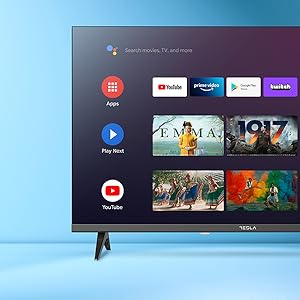
प्रतिमा ५.२: उदा.ample of the TV's settings menu for customization.
- चित्र मोड: Select from Standard, Vivid, Sport, Movie, Game, or User (custom) modes. Adjust brightness, contrast, color, and sharpness.
- HDR10: The TV supports HDR10 for enhanced contrast and color with compatible content.
- ध्वनी मोड: Choose from Standard, Music, Movie, Sport, or User (custom) modes. Use the equalizer to fine-tune audio frequencies.
- स्पीकर्स: The TV features 2 x 12W speakers.
3. देखभाल
६.१ टीव्ही साफ करणे
- स्क्रीन: मऊ, लिंट-फ्री कापडाने स्क्रीन हळूवारपणे पुसून टाका. हट्टी खुणा असल्यास, हलकेचampकापडावर पाणी किंवा विशेष स्क्रीन क्लीनर घाला. कधीही स्क्रीनवर थेट क्लिनर स्प्रे करू नका.
- शरीर: Wipe the TV body with a soft, dry cloth. Avoid using abrasive cleaners or solvents.
- साफ करण्यापूर्वी टीव्ही नेहमी पॉवर आउटलेटमधून अनप्लग करा.
3.2 सॉफ्टवेअर अद्यतने
Your Tesla Smart TV may receive software updates to improve performance and add new features. Ensure your TV is connected to the internet to receive these updates automatically or check for them manually in the settings menu.
4. समस्या निवारण
सपोर्टशी संपर्क साधण्यापूर्वी, सामान्य समस्यांसाठी खालील उपाय वापरून पहा:
| समस्या | संभाव्य उपाय |
|---|---|
| शक्ती नाही | Check if the power cord is securely connected to the TV and the wall outlet. Ensure the outlet is working. |
| चित्र नाही, पण आवाज आहे. | Ensure the correct input source is selected. Check cable connections to external devices. Try restarting the TV. |
| आवाज नाही, पण चित्र आहे. | Check the volume level and ensure the TV is not muted. Verify audio settings and external speaker connections if applicable. |
| रिमोट कंट्रोल काम करत नाही | Replace the batteries. Ensure there are no obstructions between the remote and the TV. Re-pair the Bluetooth remote if necessary (refer to TV settings). |
| नेटवर्क कनेक्शन समस्या | तुमचा राउटर आणि मोडेम रीस्टार्ट करा. वाय-फाय पासवर्ड तपासा. शक्य असल्यास वायर्ड इथरनेट कनेक्शन वापरून पहा. |
| अॅप्स हळू किंवा क्रॅश होत आहेत | Close unused apps. Clear app cache (Settings > Apps > [App Name] > Clear cache). Restart the TV. |
5. तपशील
| वैशिष्ट्य | तपशील |
|---|---|
| ब्रँड | टेस्ला |
| मॉडेल क्रमांक | 65E635SUS |
| स्क्रीन आकार | 65 इंच (165 सेमी) |
| प्रदर्शन तंत्रज्ञान | एलईडी |
| ठराव | 4K (3840 x 2160) |
| रीफ्रेश दर | 60 Hz |
| ऑपरेटिंग सिस्टम | Android TV 11 |
| विशेष वैशिष्ट्ये | High Dynamic Range (HDR10), Google Play, Chromecast Built-in, Google Assistant, Personalized Surround Sound |
| कनेक्टिव्हिटी | Wi-Fi, Bluetooth, Ethernet (LAN) |
| HDMI पोर्ट्स | 4 |
| यूएसबी पोर्ट्स | 2 |
| ऑडिओ आउटपुट | 2 x 12W स्पीकर |
| उत्पादनाचे परिमाण (स्टँडसह) | 25D x 25W x 144.5H cm (approximate) |
6. हमी आणि समर्थन
For warranty information, please refer to the warranty card included with your product or visit the official Tesla webसाइट. वॉरंटी दाव्यांसाठी तुमचा खरेदीचा पुरावा ठेवा.
For technical support or service inquiries, please contact Tesla customer service through their official channels. Contact details can typically be found on the manufacturer's webसाइट किंवा उत्पादन पॅकेजिंगमध्ये.
Ask a question about this manual
Ask about setup, troubleshooting, compatibility, parts, safety, or missing instructions. Manuals+ will review the question and use this page’s manual context to help answer it.