
1. उत्पादन संपलेview
The GIGABYTE G24F 2 is a 23.8-inch gaming monitor designed for an immersive visual experience. It features a Super Speed IPS panel, Full HD (1920 x 1080) resolution, and a high refresh rate for smooth gameplay.

आकृती 1.1: समोर view of the GIGABYTE G24F 2 gaming monitor.
प्रमुख वैशिष्ट्ये:
- पॅनेल आकार: 23.8-inch SS IPS display
- ठराव: 1920 x 1080 (FHD)
- प्रतिसाद वेळ: 1ms MPRT
- रीफ्रेश दर: 165Hz (Overclockable to 180Hz)
- रंग संतृप्तिः ९५% डीसीआय-पी३, १००% एसआरजीबी
- चमक: 300 सीडी / एम 2 (टीवायपी)
- कॉन्ट्रास्ट रेशो: १६:१०
- कनेक्टिव्हिटी: 2 x HDMI 2.0, 1 x DisplayPort 1.2 (HDR capable), 2 x USB 3.2 Gen 1 Downstream, 1 x USB 3.2 Gen 1 Upstream, 1 x Earphone Jack
- विशेष वैशिष्ट्ये: OSD Sidekick, Aim Stabilizer, Black Equalizer, Dashboard, Crosshair, Timer, Counter, Auto-Update, Smart OD, HDR Ready, Flicker-free, Kensington lock
2. सुरक्षितता माहिती
मॉनिटर वापरण्यापूर्वी कृपया सर्व सूचना काळजीपूर्वक वाचा. भविष्यातील संदर्भासाठी हे मॅन्युअल जपून ठेवा.
- आग किंवा शॉकचे धोके टाळण्यासाठी मॉनिटरला पाऊस किंवा ओलावा येऊ देऊ नका.
- मॉनिटर उघडू नका casing. आत वापरण्यायोग्य भाग नाहीत. सर्व सर्व्हिसिंग पात्र कर्मचाऱ्यांना द्या.
- मॉनिटर पडू नये म्हणून तो एका स्थिर, सपाट पृष्ठभागावर ठेवा.
- मॉनिटरभोवती योग्य वायुवीजन सुनिश्चित करा. वायुवीजन उघडण्यांना अडथळा आणू नका.
- फक्त उत्पादकाने दिलेले पॉवर अॅडॉप्टर आणि केबल्स वापरा.
- वीज पडताना किंवा बराच काळ वापरात नसताना मॉनिटर पॉवर आउटलेटमधून अनप्लग करा.
- Clean the screen with a soft, lint-free cloth. Avoid using liquid cleaners directly on the screen.
3. पॅकेज सामग्री
तुमच्या पॅकेजमध्ये सर्व वस्तू आहेत का ते तपासा:
- GIGABYTE G24F 2 Monitor
- मॉनिटर स्टँड (बेस आणि नेक)
- पॉवर केबल
- HDMI केबल
- USB Cable (Upstream)
- क्विक स्टार्ट गाईड (QSG)
- वॉरंटी कार्ड

आकृती 3.1: मागील view of the monitor, illustrating the stand attachment area.
4. सेटअप
१.२ स्टँड एकत्र करणे
- पॅकेजिंगमधून मॉनिटर आणि स्टँडचे घटक काळजीपूर्वक काढा.
- स्टँड नेक मॉनिटर पॅनलला जोडा. ते सुरक्षितपणे जागी दाबले जात आहे किंवा दिले असल्यास स्क्रूने बांधलेले आहे याची खात्री करा.
- स्टँड बेस स्टँड नेकला जोडा. बेसच्या तळाशी असलेल्या थंब स्क्रू किंवा स्क्रू घट्ट करा.
- एकत्रित मॉनिटर एका स्थिर, सपाट पृष्ठभागावर ठेवा.
4.2 मॉनिटर कनेक्ट करणे
Connect the monitor to your computer and other devices using the appropriate cables.

Figure 4.1: Monitor connectivity ports.
- वीज कनेक्शन: पॉवर केबल मॉनिटरच्या पॉवर इनपुटशी आणि नंतर पॉवर आउटलेटशी जोडा.
- व्हिडिओ कनेक्शन:
- For optimal performance, use the DisplayPort 1.2 cable to connect to your computer's graphics card.
- Alternatively, use one of the two HDMI 2.0 ports.
- यूएसबी अपस्ट्रीम कनेक्शन: Connect the provided USB 3.2 Gen 1 Upstream cable from your computer to the monitor's upstream USB port to enable the monitor's downstream USB ports.
- USB Downstream Connections: Connect USB devices (e.g., keyboard, mouse) to the monitor's two USB 3.2 Gen 1 Downstream ports.
- ऑडिओ आउटपुट: Connect headphones or external speakers to the Earphone Jack.
5. मॉनिटर चालवणे
5.1 पॉवर चालू/बंद
Press the power button, usually located on the bottom or rear of the monitor, to turn the monitor on or off. The power indicator light will show the monitor's status.
३.१ ऑन-स्क्रीन डिस्प्ले (OSD) मेनू
The OSD menu allows you to adjust various monitor settings. Navigate the OSD using the joystick or buttons typically found on the rear of the monitor.

Figure 5.1: OSD Sidekick software for convenient monitor control.
For advanced control, install the OSD Sidekick software on your PC. This utility allows you to adjust monitor settings directly from your desktop.
६.६ गेमिंग वैशिष्ट्ये
The GIGABYTE G24F 2 includes several features to enhance your gaming experience:
- Aim Stabilizer: Reduces motion blur and improves visual clarity in fast-paced games.
- काळा तुल्यकारक: Enhances visibility in dark areas of the game without overexposing bright areas.

Figure 5.2: Black Equalizer in action.
- डॅशबोर्ड: Displays real-time hardware information (e.g., CPU/GPU temperature, usage) directly on the screen.

Figure 5.3: Dashboard displaying system metrics.
- क्रॉसशेअर: Provides a customizable on-screen crosshair to assist with aiming.

Figure 5.4: On-screen Crosshair.
- टाइमर/काउंटर: On-screen timers and counters for in-game tracking.
- Smart OD: Optimizes overdrive settings for the best response time.
- स्वयं-अद्यतन: Ensures the monitor's firmware and OSD Sidekick software are up-to-date.
5.4 प्रदर्शन सेटिंग्ज
- रीफ्रेश दर: The monitor supports up to 165Hz, with an overclock option to 180Hz, for fluid motion.
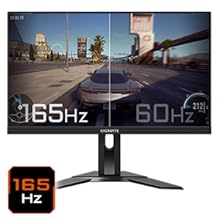
Figure 5.5: Visual comparison of 165Hz vs. 60Hz refresh rate.
- प्रतिसाद वेळ: Enjoy a 1ms MPRT (Moving Picture Response Time) for minimal ghosting.
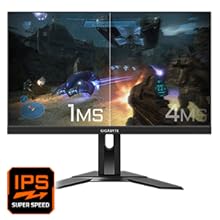
Figure 5.6: Visual comparison of 1ms vs. 4ms response time.
- रंग सरगम: The monitor covers 95% DCI-P3 and 125% sRGB for vibrant and accurate colors.
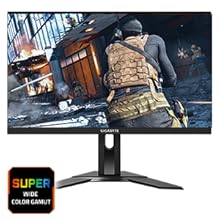
Figure 5.7: Wide color gamut for rich visuals.
- कमी निळा प्रकाश: Reduces blue light emissions to protect your eyes during extended use.
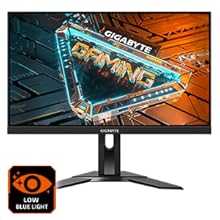
Figure 5.8: Low Blue Light feature for reduced eye strain.
- फ्लिकर-फ्री: अधिक आरामदायीतेसाठी स्क्रीन फ्लिकरिंग दूर करते viewअनुभव.

Figure 5.9: Flicker-Free technology for comfortable viewing
5.5 Product Feature Video
व्हिडिओ १: एक षटकview of the GIGABYTE G24F 2 monitor's features and specifications.
6. देखभाल
योग्य देखभाल तुमच्या मॉनिटरचे दीर्घायुष्य सुनिश्चित करते.
- स्क्रीन साफ करणे: मऊ, कोरड्या, लिंट-फ्री कापडाने स्क्रीन हळूवारपणे पुसून टाका. हट्टी खुणा असल्यास, हलकेचampकापड पाण्याने किंवा विशेष स्क्रीन क्लीनरने झाकून ठेवा (कपड्याला लावा, थेट स्क्रीनवर नाही).
- सी साफ करणेasing: मॉनिटर पुसण्यासाठी मऊ, कोरडे कापड वापरा.asing. अपघर्षक क्लीनर टाळा.
- वायुवीजन: Ensure the ventilation openings on the monitor are clear of dust and obstructions.
- वीज बंद: Turn off and unplug the monitor when not in use for extended periods.
7. समस्या निवारण
If you encounter issues with your monitor, refer to the following table for common problems and solutions.
| समस्या | संभाव्य कारण | उपाय |
|---|---|---|
| स्क्रीनवर कोणतीही प्रतिमा नाही | Power cable not connected; Video cable not connected; Incorrect input source selected | पॉवर आणि व्हिडिओ केबल कनेक्शन तपासा; OSD द्वारे योग्य इनपुट स्रोत निवडा. |
| प्रतिमा धूसर किंवा विकृत आहे. | चुकीचे रिझोल्यूशन; सैल व्हिडिओ केबल | डिस्प्ले रिझोल्यूशन १९२०x१०८० वर सेट करा; व्हिडिओ केबल सुरक्षितपणे जोडलेली असल्याची खात्री करा. |
| हेडफोन्स/स्पीकरमधून आवाज येत नाही | Audio cable not connected; Volume too low; Incorrect audio output selected on PC | Check audio cable connection; Adjust volume; Select monitor as audio output on PC. |
| यूएसबी पोर्ट काम करत नाहीत | USB upstream cable not connected | Connect the USB 3.2 Gen 1 Upstream cable from the monitor to your PC. |
| चमकणारा पडदा | Refresh rate issue; Faulty cable | Ensure refresh rate is set correctly; Try a different video cable. |
8. तपशील
Detailed technical specifications for the GIGABYTE G24F 2 monitor.

आकृती ५: मॉनिटरचे परिमाण.
| वैशिष्ट्य | तपशील |
|---|---|
| ब्रँड | गिगाबाइट |
| मॉडेलचे नाव | G24F 2 |
| मॉडेल क्रमांक | 9DG24F2-00-1ABIN |
| स्क्रीन आकार | 23.8 इंच |
| ठराव | १९२० x १०८० पिक्सेल (FHD १०८०p) |
| गुणोत्तर | १६:१० |
| डिस्प्ले प्रकार | LCD (SS IPS Panel) |
| रीफ्रेश दर | 165 Hz (180Hz OC) |
| प्रतिसाद वेळ | 1 Milliseconds (MPRT) |
| चमक | 300 candela_per_square_meter (TYP) |
| कॉन्ट्रास्ट रेशो | १६:१० |
| रंग संपृक्तता | ९५% डीसीआय-पी३, १००% एसआरजीबी |
| Viewकोन | 178 अंश |
| कनेक्टिव्हिटी | 2 x HDMI 2.0, 1 x DisplayPort 1.2, 2 x USB 3.2 Gen 1 Downstream, 1 x USB 3.2 Gen 1 Upstream, 1 x Earphone Jack |
| अडॅप्टिव्ह सिंक | फ्रीसिंक प्रीमियम |
| वीज वापर | 17.5 वॅट्स |
| आयटम वजन | 3.2 किलोग्रॅम |
| आयटमचे परिमाण (D x W x H) | ६०D x ५३.५W x ८५H सेंटीमीटर |
| माउंटिंग प्रकार | वॉल माउंट |
| उत्पादन वैशिष्ट्ये | Flicker-Free, Height Adjustment, High Dynamic Range, Tilt Adjustment |
9. हमी आणि समर्थन
The GIGABYTE G24F 2 monitor comes with a 3 वर्षाची वॉरंटी निर्मात्याकडून.
For technical support, warranty claims, or further inquiries, please contact GIGABYTE customer service:
- निर्माता: GIGABYTE Technology (India) Pvt Ltd
- पत्ता: B-808, Naman Midtown, Elphinstone Road, Mumbai – 400013 – INDIA
- फोन: +८६-७५५-२३२२३३१६
कृपया वॉरंटी सेवेसाठी तुमचा खरेदीचा पुरावा जपून ठेवा.