
Baseus 9-in-1 USB-C Docking Station
बेसियस १६-इन-१ यूएसबी-सी डॉकिंग स्टेशन वापरकर्ता मॅन्युअल
Model: B0B1PT5FVM
उत्पादन संपलेview
The Baseus 9-in-1 USB-C Docking Station is a versatile multi-port adapter designed to expand the connectivity of your USB-C enabled devices. It provides a comprehensive solution for connecting external displays, network cables, USB peripherals, and memory cards, all while delivering power to your host device.

Image: The Baseus 9-in-1 USB-C Docking Station, showcasing its compact design and multiple ports including USB-A, HDMI, Ethernet, and card reader slots, with connected cables and memory cards.
प्रमुख वैशिष्ट्ये:
- Dual Monitor Output: Supports up to 4K@120Hz for single display and dual 4K@30Hz for extended or mirrored displays via two HDMI ports.
- गीगाबीट इथरनेट: Provides a stable and fast 1000Mbps wired network connection.
- वीज वितरण (PD): Offers up to 85W power passthrough to charge your laptop while using the hub (requires a 100W power adapter, as the hub consumes 15W).
- हाय-स्पीड डेटा ट्रान्सफर: Equipped with two USB 3.0 ports (up to 5Gbps) and one USB 2.0 port (up to 60MB/s) for connecting various peripherals.
- SD/TF कार्ड रीडर: Integrated slots for SD and TF cards with data transfer speeds up to 104MB/s.

Image: A detailed diagram illustrating the various ports of the Baseus 9-in-1 docking station, including PD (100W), HDMI 1 (4K@120Hz), HDMI 2 (4K@30Hz), TF (104MB/s), SD (104MB/s), USB 2.0 (60MB/s), and two USB 3.0 (500MB/s) ports.
सेटअप मार्गदर्शक
- होस्ट डिव्हाइसशी कनेक्ट करा: Plug the integrated USB-C cable of the docking station into the USB-C port of your laptop, tablet, or smartphone. Ensure your device's USB-C port supports video output (DisplayPort Alternate Mode) and Power Delivery for full functionality.
- वीज कनेक्शन (पर्यायी परंतु शिफारस केलेले): For stable operation and to charge your host device, connect a USB-C power adapter (up to 100W recommended) to the PD (Power Delivery) port on the docking station. The hub itself consumes 15W, so an 85W output will be delivered to your device with a 100W input.
- बाह्य डिस्प्ले कनेक्ट करा:
- For single display, connect an HDMI cable from your monitor to HDMI 1 port for up to 4K@120Hz resolution.
- For dual displays, connect two HDMI cables from your monitors to both HDMI 1 and HDMI 2 ports. Resolutions will vary based on your host device's capabilities (e.g., dual 4K@30Hz).

Image: A laptop connected to the Baseus docking station, which in turn is connected to two external monitors, demonstrating the dual monitor 4K output capability.
- वायर्ड नेटवर्कशी कनेक्ट करा: Insert an Ethernet cable into the RJ45 port on the docking station for a stable 1000Mbps wired internet connection.

Image: The Baseus docking station connected to a laptop, with an Ethernet cable plugged into the hub, illustrating the stable Gigabit Ethernet connection.
- यूएसबी पेरिफेरल्स कनेक्ट करा: Plug your USB devices (e.g., keyboard, mouse, external hard drive, USB flash drive) into the available USB 3.0 or USB 2.0 ports.
- मेमरी कार्ड घाला: Insert your SD or TF (MicroSD) cards into the corresponding slots for data transfer.
ऑपरेटिंग सूचना
Once connected, the Baseus 9-in-1 USB-C Docking Station operates largely plug-and-play. Your operating system should automatically detect and configure the connected devices.
प्रदर्शन कॉन्फिगरेशन:
- विंडोज: Right-click on your desktop, select "Display settings," and arrange your monitors. You can choose to extend, duplicate, or show only on one display.
- मॅक्रोः Go to "System Preferences" > "Displays" > "Arrangement" to configure your external monitors.
Power Delivery Functionality:
The PD port allows your laptop to receive power through the docking station. Ensure your power adapter is connected to the PD port on the hub and is of sufficient wattage (e.g., 100W) to provide 85W to your laptop after the hub's self-consumption.

Image: An illustration demonstrating the power delivery function of the Baseus docking station, showing a 100W input from a power adapter and an 85W output to the connected laptop, with a note about the hub's 15W self-consumption.
डेटा ट्रान्सफर:
Utilize the USB 3.0 ports for high-speed data transfer (up to 5Gbps) for devices like external hard drives. The USB 2.0 port is suitable for lower-speed peripherals such as keyboards and mice. The SD/TF card reader supports fast transfers up to 104MB/s.
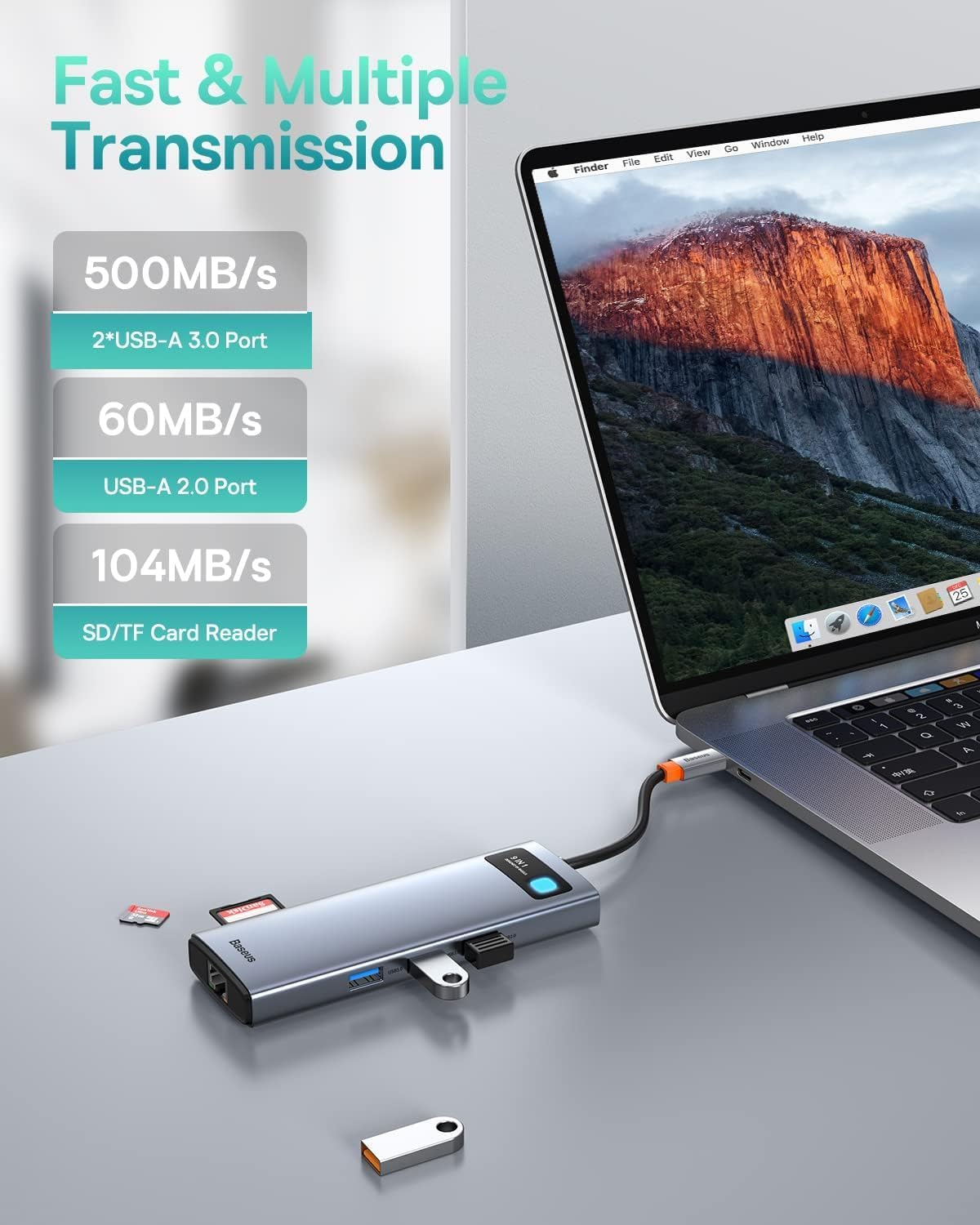
Image: The Baseus docking station connected to a laptop, with various USB devices and an SD card inserted, highlighting the fast and multiple transmission capabilities of the USB-A ports and SD/TF card reader.
देखभाल
- स्वच्छता: डॉकिंग स्टेशनची पृष्ठभाग स्वच्छ करण्यासाठी मऊ, कोरडे कापड वापरा. लिक्विड क्लीनर किंवा एरोसोल वापरणे टाळा.
- स्टोरेज: थेट सूर्यप्रकाश आणि अति तापमानापासून दूर थंड, कोरड्या जागी डिव्हाइस साठवा.
- हाताळणी: Avoid dropping or subjecting the docking station to strong impacts. Do not attempt to disassemble or modify the device.
- केबल व्यवस्थापनः Ensure cables are not excessively bent or tangled to prevent damage to the ports or internal wiring.
समस्यानिवारण
| समस्या | संभाव्य कारण | उपाय |
|---|---|---|
| बाह्य मॉनिटरवर डिस्प्ले नाही. |
|
|
| इथरनेटद्वारे इंटरनेट कनेक्शन नाही. |
|
|
| USB डिव्हाइसेस ओळखले गेले नाहीत. |
|
|
| डेटा ट्रान्सफरचा वेग कमी. |
|
|
तपशील
| वैशिष्ट्य | तपशील |
|---|---|
| मॉडेल | 9-in-1 USB-C Docking Station (B0B1PT5FVM) |
| ब्रँड | बेसियस |
| उत्पादन परिमाणे | 5.31 x 1.93 x 0.63 इंच |
| आयटम वजन | 5.3 औंस |
| हार्डवेअर इंटरफेस | MicroSD, USB Type C, Ethernet, HDMI, USB 3.0, USB 2.0, Secure Digital Card |
| HDMI आउटपुट 1 | Up to 4K@120Hz (Single Display) |
| HDMI आउटपुट 2 | Up to 4K@30Hz (Single Display) |
| ड्युअल HDMI आउटपुट | Up to 4K@30Hz + 4K@30Hz (Dependent on host device capabilities) |
| इथरनेट पोर्ट | १००० एमबीपीएस गिगाबिट इथरनेट |
| यूएसबी-सी पीडी पोर्ट | Max 85W Power Delivery (100W input required, 15W for hub self-consumption) |
| USB 3.0 पोर्ट | 2 ports, up to 5Gbps data transfer speed |
| यूएसबी 2.0 पोर्ट | 1 port, up to 60MB/s data transfer speed |
| SD/TF कार्ड रीडर | Supports up to 104MB/s data transfer speed |
| सुसंगत साधने | iPhone 15 Series, ASUS ROG Ally, Steam Deck, MacBook, MacBook Pro (2018-2021), MacBook Air (2018-2020), Mac mini (2018-2020), iPad Pro/Air (2018/2020), iPad mini 6, Dell XPS, Dell Latitude, Lenovo Yoga, Thinkpad, Microsoft Surface series, Samsung Galaxy phones/tablets, HP Spectre, Elitebook, Envy, ASUS Zenbook, Acer Aspire. |
हमी आणि समर्थन
For detailed warranty information and customer support, please refer to the official Baseus webवेबसाइटवर जा किंवा त्यांच्या ग्राहक सेवेशी थेट संपर्क साधा. वॉरंटी दाव्यांसाठी तुमची खरेदी पावती जपून ठेवा.
बेसियस ऑफिशियल Webसाइट: www.baseus.com
Ask a question about this manual
Ask about setup, troubleshooting, compatibility, parts, safety, or missing instructions. Manuals+ will review the question and use this page’s manual context to help answer it.