
परिचय
The Verizon G3100 Router is designed to provide high-speed internet connectivity using Wi-Fi 6 technology. It supports both 2.4GHz and 5GHz bands with 11ax 4x4 capabilities, offering extended Wi-Fi range and efficient network performance. This manual will guide you through the installation, operation, and maintenance of your G3100 router to ensure optimal performance.
बॉक्समध्ये काय आहे
Upon unboxing your Verizon G3100 Router, verify that all components are present.
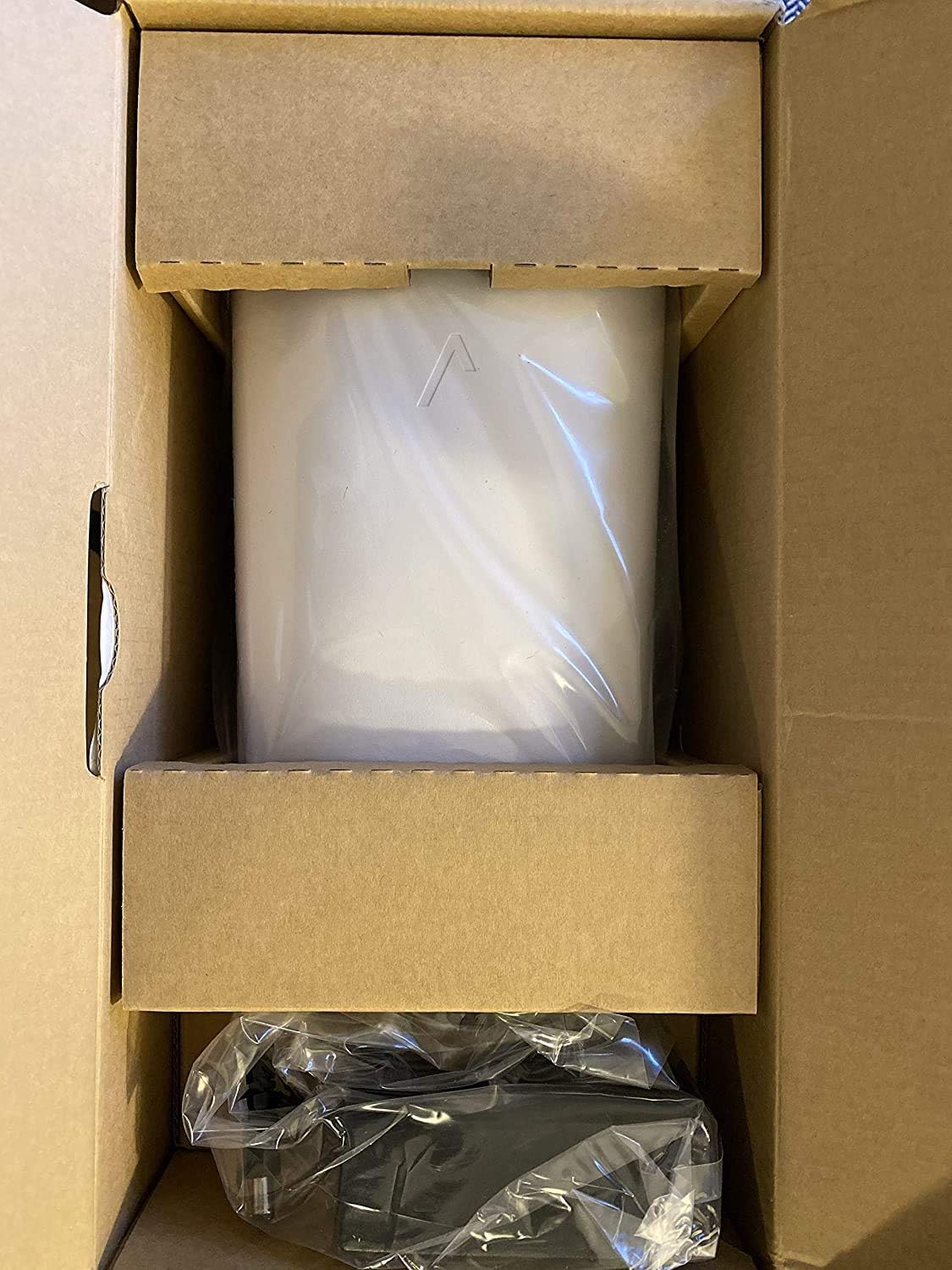
Image: The Verizon G3100 Router securely packaged in its cardboard box, wrapped in protective plastic.
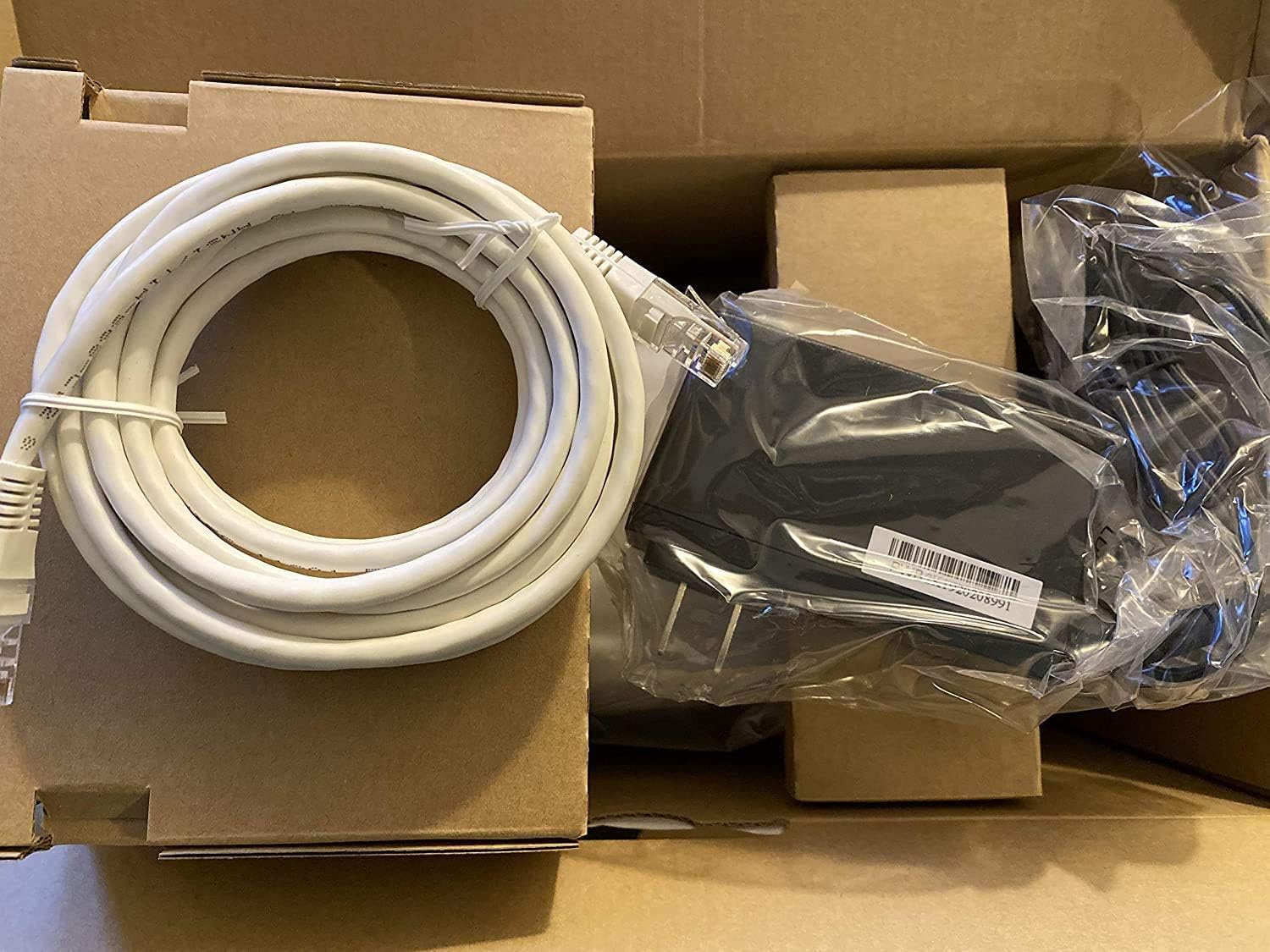
Image: The Verizon G3100 Router unboxed, showing the main unit, a coiled white Ethernet cable, and the power adapter.
- Verizon G3100 Router Unit
- पॉवर अडॅप्टर
- इथरनेट केबल
सेटअप मार्गदर्शक
Follow these steps to set up your Verizon G3100 Router:
- प्लेसमेंट: Choose a central location in your home, away from obstructions and other electronic devices that may cause interference.
- वीज कनेक्ट करा: पॉवर अॅडॉप्टरला राउटरच्या पॉवर पोर्टमध्ये आणि नंतर इलेक्ट्रिकल आउटलेटमध्ये प्लग करा.
- Connect to Internet Source:
- If using an Ethernet connection from your Optical Network Terminal (ONT) or modem, connect one end of the provided Ethernet cable to the WAN port (usually labeled "WAN" or "Internet") on the router and the other end to your ONT/modem.
- If using a Coaxial (MoCA) connection, connect a coaxial cable from your wall outlet to the MoCA port on the router.
- उपकरणे कनेक्ट करा (पर्यायी): For wired connections, use Ethernet cables to connect your devices (computers, gaming consoles, etc.) to any of the four Gigabit LAN ports on the back of the router.
- पॉवर चालू: Wait for the router to power on and initialize. The indicator light on the front of the router will typically turn solid white or green when it's ready.
- Wi-Fi शी कनेक्ट करा:
- Locate the Wi-Fi network name (SSID) and password on the label on the bottom or back of your router.
- On your device (smartphone, tablet, computer), select the Wi-Fi network name and enter the password.
- सेवा सक्रिय करा: Follow any specific activation instructions provided by Verizon, which may involve visiting a website or using a mobile app.
ऑपरेटिंग सूचना
The Verizon G3100 Router is designed for ease of use and high performance.
- Automatic Band Switching: The router automatically switches between the 2.4GHz and 5GHz Wi-Fi bands to provide the best connection for your devices, optimizing speed and range.
- वाय-फाय ६ (८०२.११अॅक्स): This advanced Wi-Fi standard offers faster speeds, lower latency, and increased capacity for multiple devices compared to older Wi-Fi standards.
- गिगाबिट इथरनेट पोर्ट: Utilize the four Gigabit LAN ports for high-speed wired connections to devices requiring maximum bandwidth, such as desktop computers or network-attached storage (NAS).
- MoCA 2.5: The router supports MoCA 2.5 for high-speed data transmission over coaxial cables, which can be useful for extending network coverage in your home.
- Router Interface: Access the router's administrative interface via a web browser (usually by typing
192.168.1.1into the address bar) to customize settings, manage connected devices, and view network status. Refer to your router's label for default login credentials. - मोबाइल अॅप नियंत्रण: Manage your router settings and network from your smartphone using the official Verizon Fios app.
देखभाल
नियमित देखभालीमुळे तुमच्या राउटरचे दीर्घायुष्य आणि इष्टतम कार्यप्रदर्शन सुनिश्चित होण्यास मदत होते.
- फर्मवेअर अद्यतने: The router typically receives automatic firmware updates from Verizon. Ensure your router remains connected to the internet to receive these updates, which provide security enhancements and performance improvements.
- स्वच्छता: Periodically clean the exterior of the router with a soft, dry cloth. Ensure ventilation slots are free from dust to prevent overheating. Do not use liquid cleaners or abrasive materials.
- रीस्टार्ट करत आहे: If you experience minor network issues, a simple restart of the router can often resolve them. Unplug the power adapter, wait 30 seconds, and then plug it back in.
- सुरक्षा: Regularly change your Wi-Fi password and router administration password to strong, unique combinations to protect your network from unauthorized access.
समस्यानिवारण
If you encounter issues with your Verizon G3100 Router, refer to the following common solutions:
- इंटरनेट कनेक्शन नाही:
- Check all cable connections (power, WAN/Internet, MoCA). Ensure they are securely plugged in.
- Restart your router and ONT/modem.
- Verify that your Verizon service is active.
- मंद वाय-फाय स्पीड:
- Ensure your router is placed centrally and away from interference sources.
- Confirm your devices are connected to the appropriate Wi-Fi band (5GHz generally offers faster speeds over shorter distances).
- Perform a speed test to verify your internet speed.
- Consider reducing the number of active devices or upgrading your internet plan if speeds are consistently below expectations.
- Wi-Fi Signal Drops:
- Relocate the router to improve signal coverage.
- फर्मवेअर अद्यतने तपासा.
- If you have a large home, consider adding a Wi-Fi extender compatible with the G3100.
- राउटर सेटिंग्जमध्ये प्रवेश करू शकत नाही:
- Ensure your device is connected to the router's Wi-Fi network or via an Ethernet cable.
- Verify you are typing the correct IP address (e.g.,
192.168.1.1) तुमच्या ब्राउझरमध्ये. - Use the correct username and password. If forgotten, a factory reset may be necessary (refer to the router's documentation for reset procedures, which will erase all custom settings).
तपशील
| वैशिष्ट्य | तपशील |
|---|---|
| ब्रँड | Verizon |
| मॉडेलचे नाव | G3100 |
| वारंवारता बँड वर्ग | ड्युअल-बँड (२.४GHz, ५GHz) |
| वायरलेस कम्युनिकेशन स्टँडर्ड | 802.11ax (वाय-फाय 6) |
| लॅन पोर्ट्स | 4 गिगाबिट LAN |
| वॅन पोर्ट | 1 Gigabit WAN |
| MoCA Support | MoCA 2.5 + LAN MoCA 1.1 WAN |
| अँटेना प्रकार | Internal (4 antennas) |
| Automatic Band Switching | होय |
| आयटम वजन | 3 पाउंड |
| नियंत्रण पद्धत | ॲप |
| डेटा ट्रान्सफर रेट | 1 Gigabits Per Second (LAN) |
| सुरक्षा प्रोटोकॉल | WPS |
| Router Firewall Security Level | बेसिक |
| UPC | 600164709797 |
हमी आणि समर्थन
For warranty information, technical support, or to access additional resources, please refer to the official Verizon documentation included with your product or visit the Verizon support webजागा. वॉरंटी दाव्यांसाठी तुमची खरेदी पावती ठेवा.
आपण भेट देऊ शकता Verizon Store on Amazon अधिक माहितीसाठी.