
BenQ EX3501R
BenQ EX3501R Ultrawide Curved Gaming Monitor User Manual
Model: EX3501R
1. सेटअप
२.१ मॉनिटर अनपॅक करणे
पॅकेजिंगमधून सर्व घटक काळजीपूर्वक काढा. खाली सूचीबद्ध केलेल्या सर्व वस्तू उपस्थित असल्याची खात्री करा:
- BenQ EX3501R Monitor
- मॉनिटर स्टँड (बेस आणि नेक)
- पॉवर अडॅप्टर
- पॉवर कॉर्ड
- HDMI केबल
- डिस्प्लेपोर्ट केबल
- यूएसबी-सी केबल
- वापरकर्ता मॅन्युअल (हा दस्तऐवज)
१.२ स्टँड एकत्र करणे
तुमच्या मॉनिटरला स्टँड जोडण्यासाठी या चरणांचे अनुसरण करा:
- ओरखडे टाळण्यासाठी मॉनिटरचा चेहरा मऊ, स्वच्छ कापडावर ठेवा.
- स्टँड नेक मॉनिटरच्या मागील बाजूस जोडा. तो सुरक्षितपणे जागी टेकत आहे याची खात्री करा.
- Connect the stand base to the neck, tightening any screws as indicated in the quick start guide.

आकृती 1: समोर view of the BenQ EX3501R monitor with its stand.
1.3 कनेक्टिंग केबल्स
Connect the necessary cables to the monitor and your computer. The monitor supports various input options:
- शक्ती: पॉवर अॅडॉप्टर मॉनिटरला आणि नंतर पॉवर आउटलेटला जोडा.
- व्हिडिओ इनपुट: Use either the HDMI, DisplayPort, or USB-C cable to connect your computer to the monitor.
- यूएसबी-सी: The USB-C port supports video, data transfer, and power delivery, allowing for a single-cable connection with compatible devices.
- USB 3.0 पोर्ट: Utilize the integrated USB 3.0 ports for connecting peripherals.
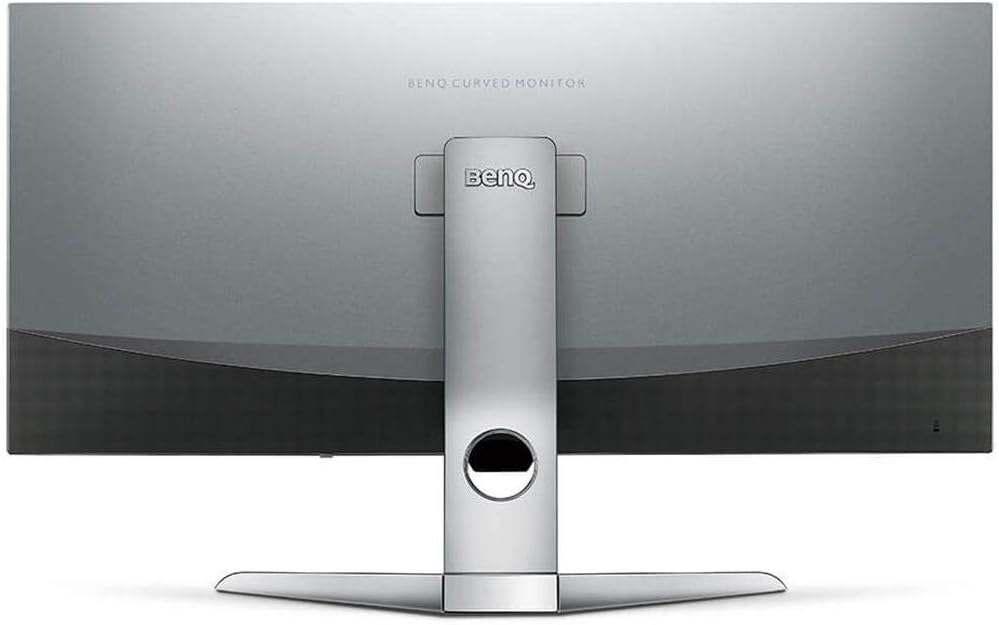
आकृती 2: मागील view of the monitor displaying the connectivity ports.
2. मॉनिटर चालवणे
2.1 पॉवर चालू/बंद
Press the power button, usually located on the bottom right side of the monitor, to turn it on or off. The power indicator light will illuminate when the monitor is active.
२.२ ऑन-स्क्रीन डिस्प्ले (OSD) नेव्हिगेशन
Use the joystick or buttons located on the monitor's underside to navigate the On-Screen Display (OSD) menu. This menu allows you to adjust various settings such as brightness, contrast, color modes, and input sources.
2.3 Display Features and Eye-Care Technology
The BenQ EX3501R incorporates several technologies designed to enhance viewing experience and reduce eye strain:
- ब्राइटनेस इंटेलिजेंस प्लस (BI+): This patented technology automatically senses ambient lighting conditions and adjusts the screen's brightness and color temperature to provide optimal viewing comfort and protect your eyes during extended use.
- कमी निळा प्रकाश: Filters out harmful blue light emissions to reduce eye fatigue. Multiple levels of blue light reduction are available.
- ZeroFlicker™: Eliminates screen flickering at all brightness levels, further reducing eye strain and discomfort.
- HDR (उच्च डायनॅमिक रेंज): Offers enhanced brightness and contrast, bringing greater detail and vibrancy to HDR video content.
व्हिडिओ १: एक षटकview of BenQ's Eye-Care technology, including Low Blue Light, ZeroFlicker, and Brightness Intelligence Plus, demonstrating how these features work to reduce eye strain and adjust screen settings automatically based on ambient light.
६.२ रिझोल्यूशन आणि रिफ्रेश रेट
The monitor features a QHD (3440x1440) resolution and a 100Hz refresh rate, providing a smooth and detailed visual experience. The 21:9 ultrawide aspect ratio offers ample screen space for multitasking, such as viewing multiple documents side-by-side without needing a second monitor.
४.३ एएमडी फ्रीसिंक
For a fluid gaming experience, the monitor supports AMD FreeSync technology, which synchronizes the monitor's refresh rate with your graphics card's frame rate to eliminate screen tearing and stuttering.
3. देखभाल
3.1 मॉनिटर साफ करणे
To maintain optimal performance and appearance, regularly clean your monitor:
- स्क्रीन: मऊ, लिंट-फ्री कापडाने स्क्रीन हळूवारपणे पुसून टाका. हट्टी डागांसाठी, थेट स्क्रीनवर न लावता कापडावर लावलेले मॉनिटर-विशिष्ट क्लिनिंग सोल्यूशन वापरा.
- बाह्य: Use a soft, dry cloth to wipe dust and debris from the monitor casing and stand.
Avoid using abrasive cleaners, waxes, or solvents as they can damage the monitor's surface.
४.३ सामान्य काळजी टिप्स
- Do not block ventilation openings on the monitor.
- मॉनिटरला थेट सूर्यप्रकाशात किंवा उष्णतेच्या स्त्रोतांजवळ ठेवणे टाळा.
- शारीरिक नुकसान टाळण्यासाठी मॉनिटर काळजीपूर्वक हाताळा.
4. समस्या निवारण
If you encounter issues with your BenQ EX3501R monitor, refer to the following common troubleshooting steps:
4.1 No Display or Black Screen
- पॉवर केबल मॉनिटर आणि पॉवर आउटलेट दोन्हीशी सुरक्षितपणे जोडलेली आहे याची खात्री करा.
- व्हिडिओ केबल (HDMI, डिस्प्लेपोर्ट, किंवा USB-C) मॉनिटर आणि तुमच्या संगणकाशी घट्ट जोडलेली आहे याची पडताळणी करा.
- मॉनिटरच्या OSD मेनूमध्ये योग्य इनपुट स्रोत निवडला आहे का ते तपासा.
- तुमचा संगणक रीस्टार्ट करा.
4.2 Flickering or Unstable Image
- Ensure the ZeroFlicker™ feature is enabled in the OSD menu.
- Check for loose video cable connections.
- तुमचे ग्राफिक्स कार्ड ड्रायव्हर्स नवीनतम आवृत्तीवर अपडेट करा.
- If using AMD FreeSync, ensure it is properly configured in your graphics card settings.
4.3 Color or Brightness Issues
- ओएसडी मेनूद्वारे ब्राइटनेस, कॉन्ट्रास्ट आणि रंग सेटिंग्ज समायोजित करा.
- Enable or disable Brightness Intelligence Plus (B.I.+) to see if it resolves the issue.
- Perform a factory reset through the OSD menu.
5. तपशील
Key technical specifications for the BenQ EX3501R monitor:
| वैशिष्ट्य | तपशील |
|---|---|
| स्क्रीन आकार | 35 इंच |
| कमाल स्क्रीन रिझोल्यूशन | 3440 x 1440 Pixels (QHD Ultrawide) |
| गुणोत्तर | १६:१० |
| रीफ्रेश दर | 100 Hz |
| वक्रता | ३७ आर |
| पॅनेल प्रकार | VA (उभ्या संरेखन) |
| कनेक्टिव्हिटी | USB-C, HDMI, DisplayPort |
| विशेष वैशिष्ट्ये | AMD FreeSync, Brightness Intelligence Plus, Low Blue Light, ZeroFlicker |
| आयटम वजन | 21.3 पाउंड |
| उत्पादन परिमाणे | 6.88 x 3.47 x 12.93 इंच |
6. हमी आणि समर्थन
6.1 उत्पादनाची हमी
The BenQ EX3501R monitor typically comes with a 3-year manufacturer's warranty. Please refer to the warranty card included in your product packaging for specific terms and conditions, or visit the official BenQ webतपशीलवार वॉरंटी माहितीसाठी साइट.
6.2 ग्राहक समर्थन
For further assistance, technical support, or warranty claims, please contact BenQ customer service. You can find contact information and support resources on the official BenQ webसाइट: www.benq.com/en-us/support.html
Ask a question about this manual
Ask about setup, troubleshooting, compatibility, parts, safety, or missing instructions. Manuals+ will review the question and use this page’s manual context to help answer it.