
1. परिचय
This manual provides detailed instructions for the setup, operation, and maintenance of your ELECROW 7 Inch 1024x600 IPS Capacitive Touchscreen Monitor. This display is designed for broad compatibility with devices such as Raspberry Pi (5/4/3B+/3B/2B+), BB Black, Banana Pi, Jetson Nano, and Windows 11/10/8/7 systems.
प्रमुख वैशिष्ट्ये:
- एचडी व्हिज्युअल: 7-inch IPS screen with 1024x600 resolution and 170° wide viewing angle for consistent colors and clear viewing
- Capacitive Touch: Supports up to 5-point touch functionality without requiring driver installation for most compatible systems.
- प्लग आणि प्ले: Simple connectivity via HD (HDMI) and Micro USB ports for immediate use.
- बहुमुखी अनुप्रयोग: Suitable for use as a Raspberry Pi display, mini PC monitor, gaming console screen, or a computer temperature monitor.
२. बॉक्समध्ये काय आहे?
कृपया स्थापनेला पुढे जाण्यापूर्वी सर्व घटक उपस्थित आहेत का ते तपासा.
- 7 Inch Capacitive Display x 1
- HD Cable x 1
- USB केबल x 1
- Micro HD Adapter x 1
- Copper Screws Pack (4pcs) x 1
- DVD x 1 (Contains drivers and documentation)
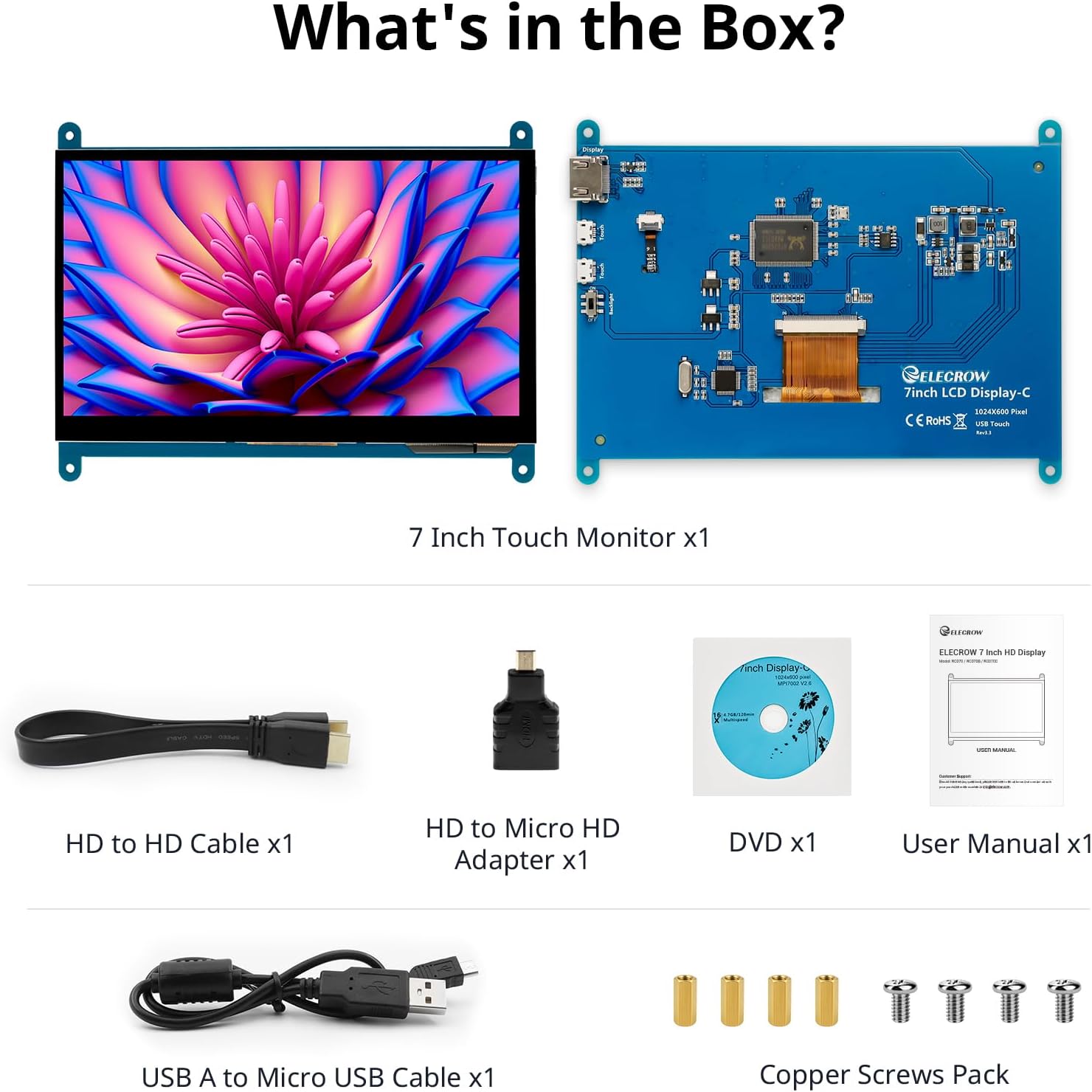
प्रतिमा: उत्पादन पॅकेजिंगमध्ये समाविष्ट असलेले सर्व घटक.
५. सेटअप आणि कनेक्शन
Follow these steps to connect your ELECROW 7 Inch Touchscreen Monitor to your device.
3.1 हार्डवेअर ओव्हरview

प्रतिमा: मागचा भाग view of the monitor highlighting the Standard HD Port, Micro USB Port for touch and power, and Backlight switch.
- Standard HD Port: For video data transfer.
- मायक्रो यूएसबी पोर्ट: स्पर्श कार्यक्षमता आणि वीज पुरवठ्यासाठी.
- बॅकलाइट स्विच: To turn the display backlight on or off.
3.2 Connecting to Raspberry Pi
To connect the monitor to a Raspberry Pi, you will need both the HD cable for video and the USB cable for touch and power.
- Connect one end of the HD cable to the Standard HD Port on the monitor and the other end to the HDMI port on your Raspberry Pi. Use the Micro HD adapter if necessary for your Raspberry Pi model.
- Connect the Micro USB cable to the Micro USB Port on the monitor. Connect the other end of the USB cable to a USB port on your Raspberry Pi for power and touch data.
- Ensure the backlight switch on the monitor is in the 'On' position.
- Power on your Raspberry Pi. The display should automatically detect and show the output.
For touch functionality with Raspberry Pi, power can be supplied via the Raspberry Pi's USB port. If using an external power source for the Raspberry Pi, ensure it is sufficient. For optimal performance, especially with older Raspberry Pi models, an external power supply for the monitor might be beneficial if the Pi cannot provide enough current.
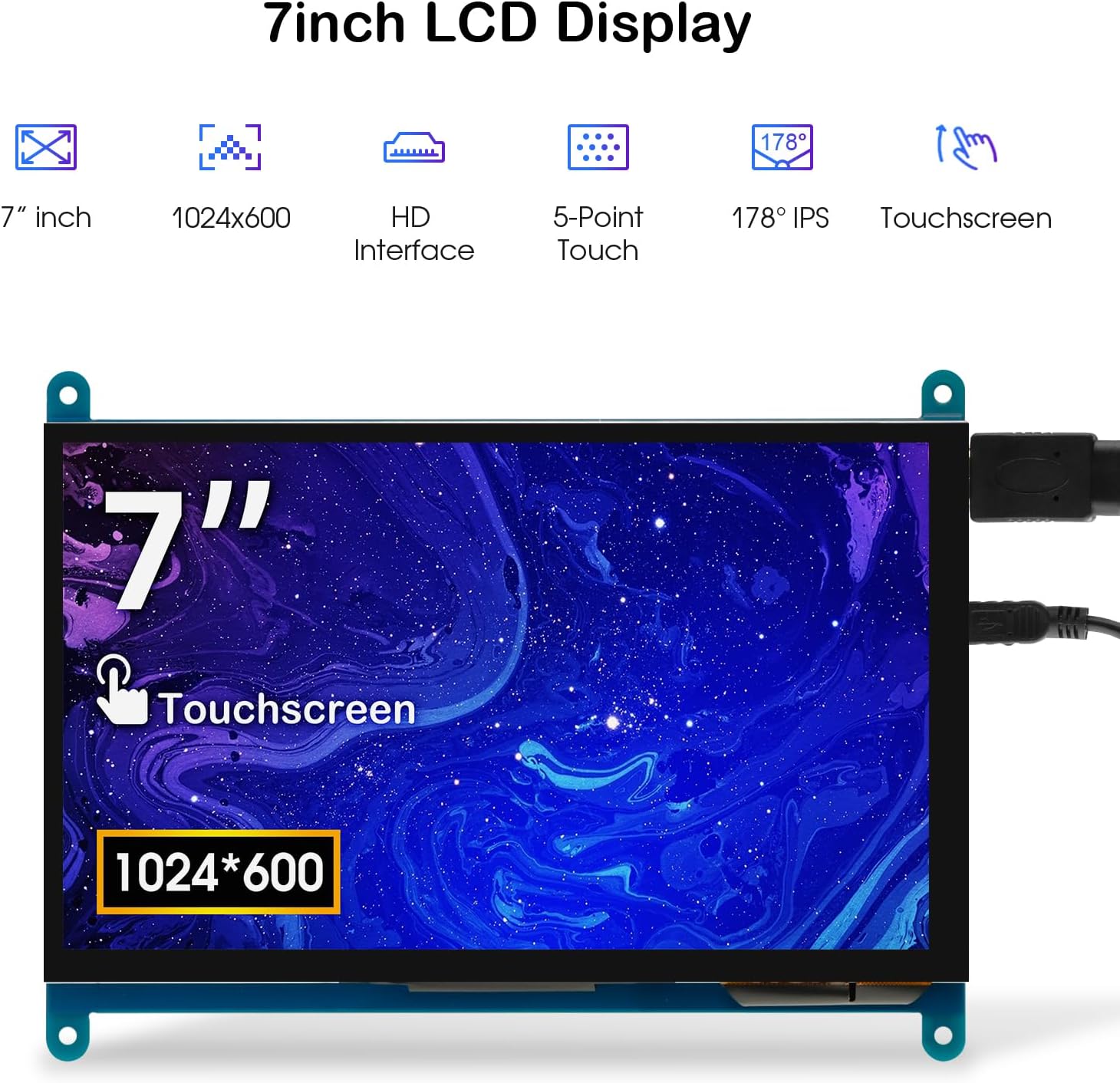
Image: The 7-inch touchscreen connected to a Raspberry Pi board, displaying a graphical user interface.
3.3 Connecting to Windows PC/Laptop
For Windows systems, the monitor functions as a plug-and-play display and touchscreen.
- Connect the HD cable from the monitor's Standard HD Port to an HDMI port on your PC or laptop.
- Connect the Micro USB cable from the monitor's Micro USB Port to a USB-A port on your PC or laptop. This provides power and enables touch functionality.
- Ensure the backlight switch is 'On'.
- Your Windows system should automatically detect the display and touchscreen. No additional drivers are typically required for Windows 7/8/10/11 for basic display and 5-point touch.

Image: The 7-inch touchscreen connected to a laptop, demonstrating seamless connectivity with various operating systems including Windows.
4. ऑपरेटिंग सूचना
4.1 Touch Functionality
The monitor supports 5-point capacitive touch, allowing for various gestures.
- टॅप करा: Single touch for selection or activation.
- दाबा: Sustained touch for context menus or drag operations.
- झूम इन/आउट: Pinch gestures with two fingers.
- Mouse Click: A single tap typically registers as a left-click.
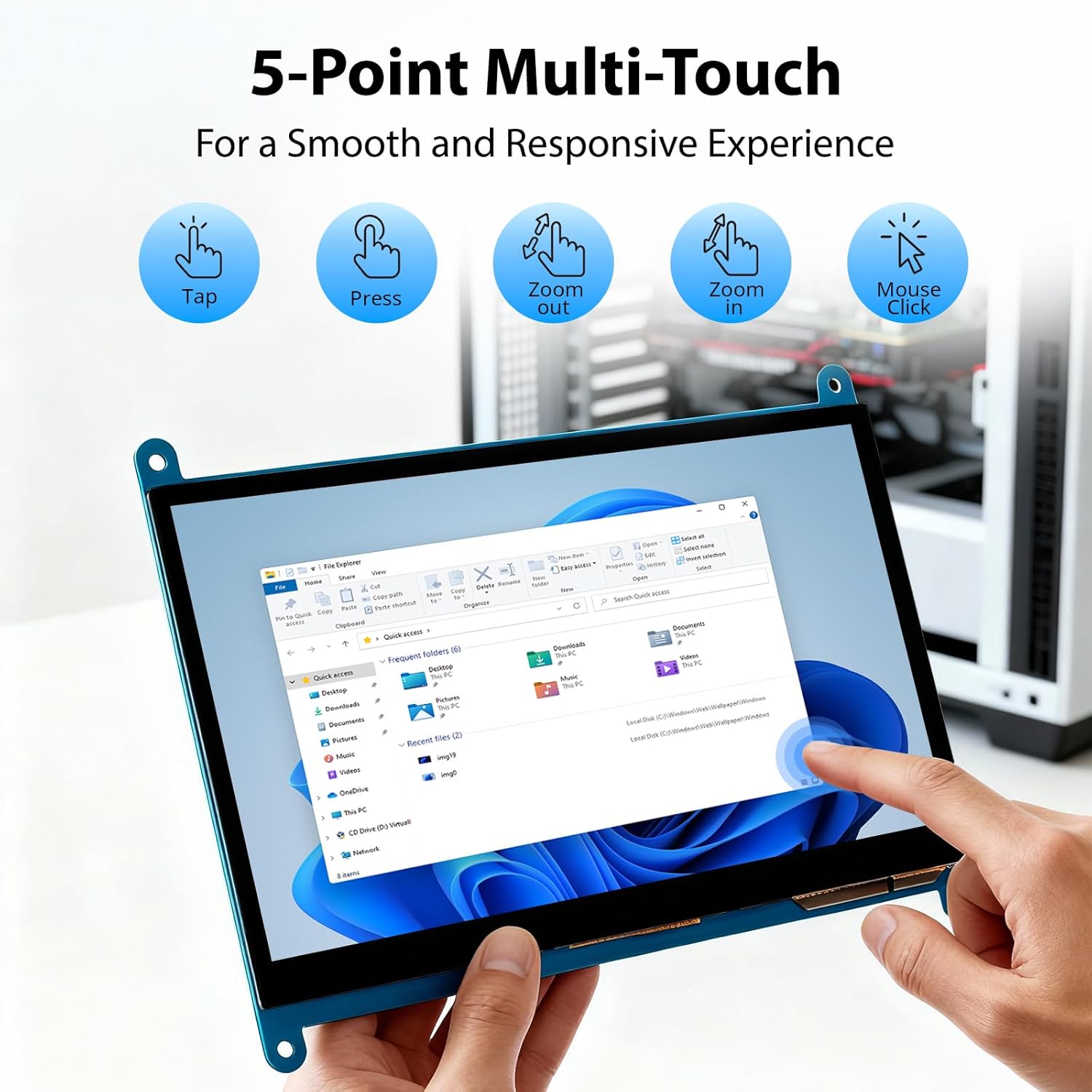
Image: Visual guide to the 5-point multi-touch capabilities of the screen, showing common gestures.
4.2.१ प्रदर्शन मोड
When connected to a computer, the monitor can operate in several display modes:
- डुप्लिकेट मोड: The monitor mirrors the content of your primary display.
- विस्तार मोड: The monitor acts as an extension of your primary display, providing additional screen space.
- दुसरा स्क्रीन मोड: The monitor functions as the sole display, with the primary display turned off.
These modes can typically be configured through your operating system's display settings.

Image: Illustrations demonstrating the three display modes: Duplicate, Extend, and Second Screen, showing how the monitor can be used with a laptop.
4.3 बॅकलाइट कंट्रोल
The monitor features a physical switch to control the backlight. This allows you to turn the display illumination on or off without disconnecting power. Note that there is no granular brightness control; it is an on/off function only.
Video: This video demonstrates the backlight control switch on the ELECROW 7 Inch Touchscreen, showing how to turn the display illumination on and off.
5. देखभाल
योग्य देखभाल तुमच्या मॉनिटरचे दीर्घायुष्य आणि इष्टतम कामगिरी सुनिश्चित करते.
- स्क्रीन साफ करणे: मऊ, लिंट-फ्री कापड किंचित वापरा dampपाण्याने किंवा स्क्रीन-क्लिनिंग सोल्युशनने भिजवा. स्क्रीनच्या पृष्ठभागाला नुकसान पोहोचवू शकणारे कठोर रसायने किंवा अपघर्षक पदार्थ टाळा.
- सामान्य काळजी: Keep the monitor in a clean, dry environment. Avoid exposing it to extreme temperatures, direct sunlight, or high humidity.
- हाताळणी: Handle the monitor by its edges. Avoid applying excessive pressure to the screen.
6. समस्या निवारण
जर तुम्हाला तुमच्या मॉनिटरमध्ये समस्या येत असतील, तर खालील सामान्य समस्या आणि उपाय पहा.
| समस्या | संभाव्य कारण | उपाय |
|---|---|---|
| डिस्प्ले नाही/काळी स्क्रीन नाही |
|
|
| टचस्क्रीन प्रतिसाद देत नाही |
|
|
| Display resolution incorrect |
|
|
| ब्राइटनेस कंट्रोल नाही | The monitor only has an on/off switch for the backlight, not adjustable brightness. | This is expected behavior. The monitor does not support adjustable brightness. |
7. तपशील
Detailed technical specifications for the ELECROW 7 Inch Touchscreen Monitor.
| वैशिष्ट्य | तपशील |
|---|---|
| ब्रँड | ELECROW |
| मॉडेलचे नाव | RC070 |
| स्क्रीन आकार | 7 इंच |
| डिस्प्ले रिझोल्यूशन कमाल | 1024 x 600 |
| मूळ ठराव | 1024x600 |
| डिस्प्ले प्रकार | एलसीडी |
| प्रदर्शन तंत्रज्ञान | आयपीएस |
| गुणोत्तर | १६:१० |
| रीफ्रेश दर | 60 Hz |
| प्रतिसाद वेळ | 8 मिलीसेकंद |
| कॉन्ट्रास्ट रेशो | १६:१० |
| चमक | ६७६५ एलएम |
| Viewकोन | 170 अंश |
| स्क्रीन पृष्ठभागाचे वर्णन | चकचकीत |
| कनेक्टिव्हिटी तंत्रज्ञान | HDMI |
| हार्डवेअर कनेक्टिव्हिटी | HDMI, USB |
| Total Number of HDMI Ports | 1 |
| एकूण यूएसबी पोर्ट | 2 (Micro USB for power/touch, USB-A for power/touch) |
| वीज वापर | 12.5 वॅट्स |
| खंडtage | 5 व्होल्ट |
| आयटमचे परिमाण (D x W x H) | १६"उ x २६"प x ४७"उ |
| आयटम वजन | 7.36 औंस |
| सुसंगत साधने | Raspberry Pi, BB Black, Banana Pi, Jetson Nano, Computers, Laptops, Gaming Consoles |
8. हमी आणि समर्थन
Your ELECROW 7 Inch Touchscreen Monitor comes with a manufacturer's warranty.
- वॉरंटी प्रकार: 1 वर्षाची उत्पादक वॉरंटी
- हमी वर्णन: 1 वर्षाचा निर्माता
For technical support or warranty claims, please contact ELECROW customer service through their official webज्या साइटवर किंवा प्लॅटफॉर्मवर उत्पादन खरेदी केले होते.